

Finishing and learning
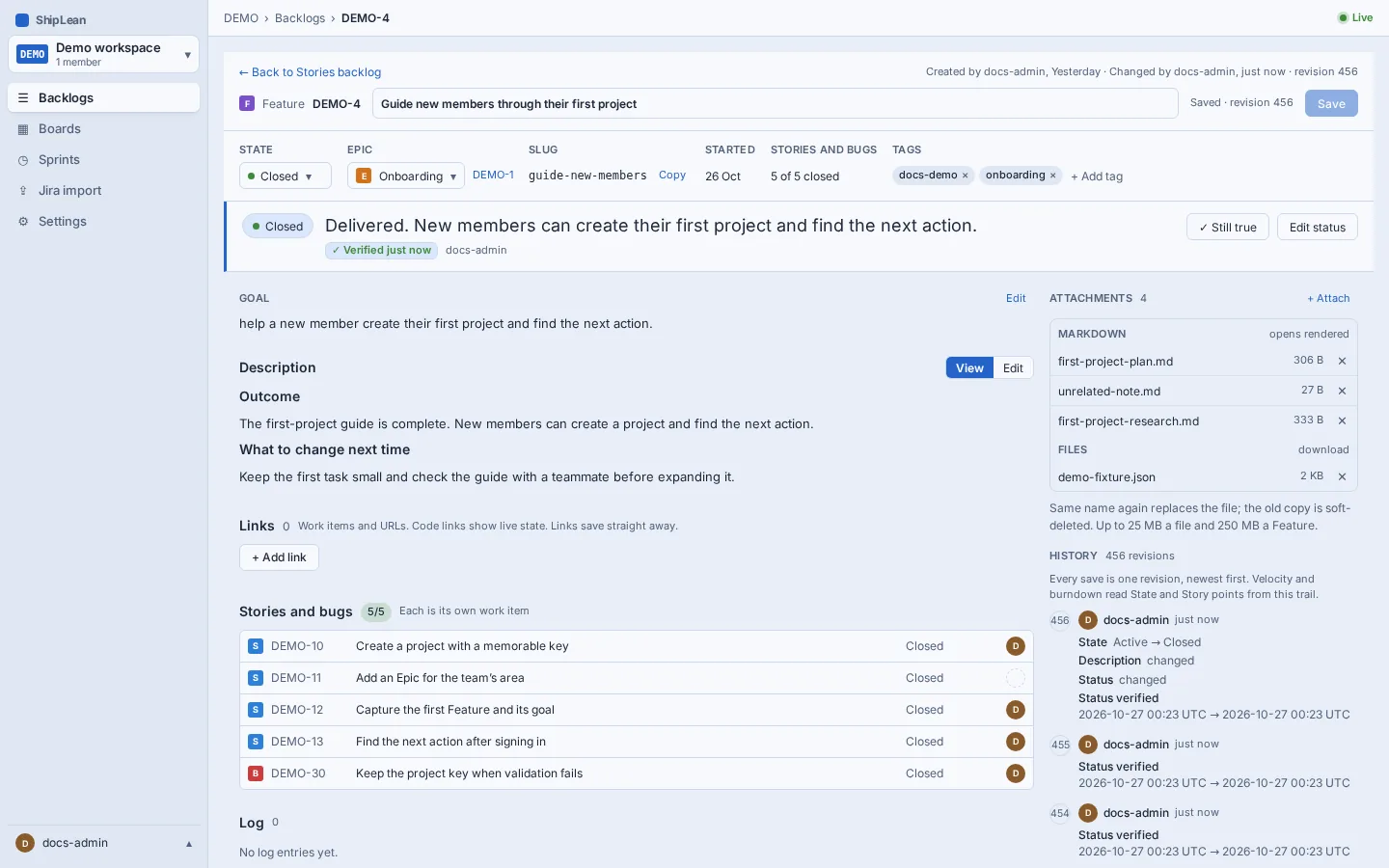
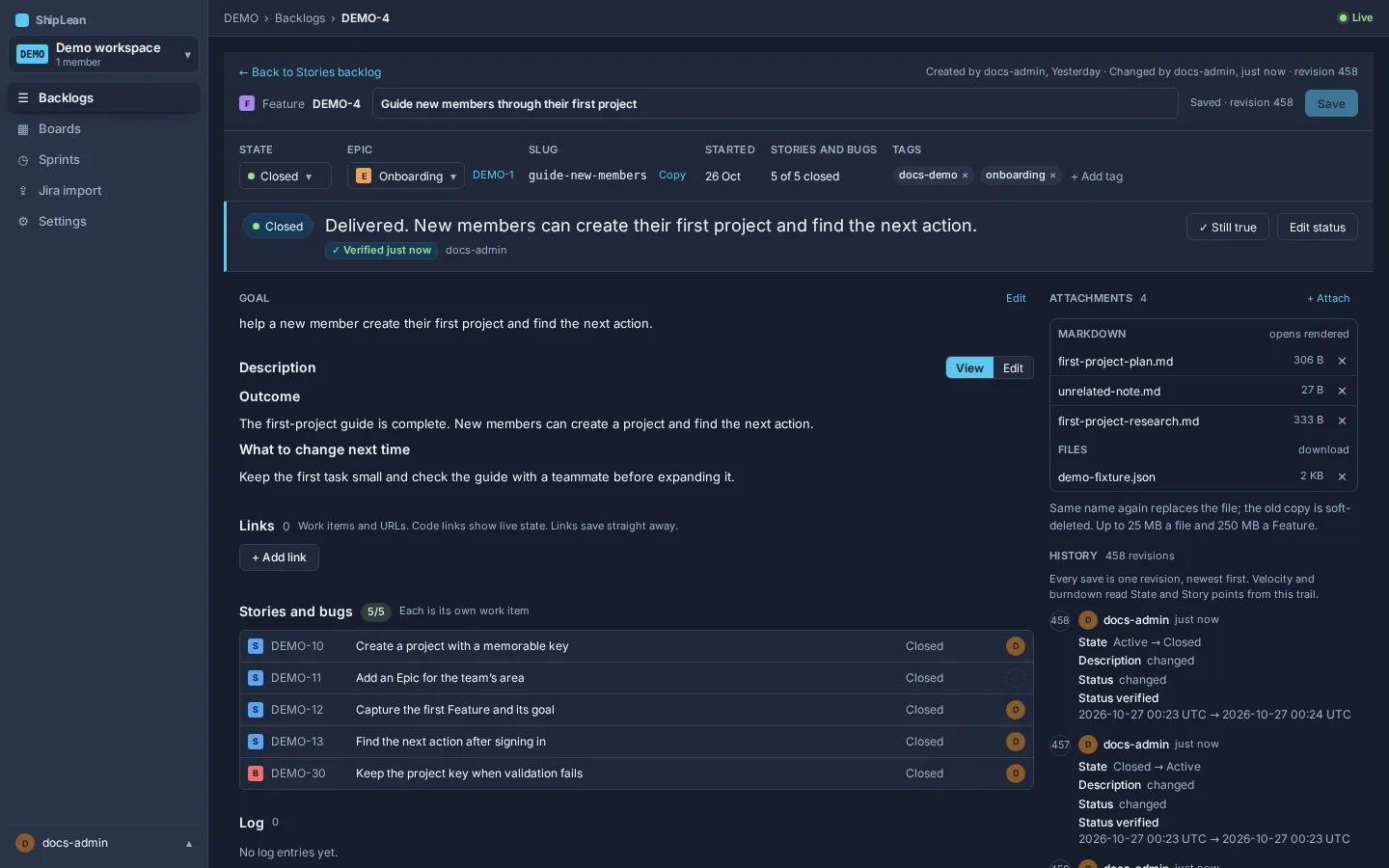
When the work for Guide new members through their first project is complete, check its Stories and Tasks, record the outcome, and finish the Feature in its Completed state. The Feature keeps the plan and its retrospective together.
Use Blocked and Parked for different situations
Section titled “Use Blocked and Parked for different situations”Use Blocked when work cannot continue because it waits on a dependency or decision. Mark the blocker with a Blocked tag or a blocked-by link. Record what would unblock the work. Use Parked when the team decides to defer the Feature. Keep it in the Proposed state, and start its status line with Parked:, followed by the reason and the condition for picking it up again. A blocked item needs attention to resume. A parked Feature is a deliberate pause.
The default workflow has no separate Blocked or Parked states. It uses the states New, Active, Resolved, Closed, and Removed. Their categories are Proposed, In Progress, Resolved, Completed, and Removed, in the same order. State names and categories are separate. The category determines how ShipLean treats a state: as in progress, resolved, completed, or removed. If your project has custom states, check its workflow before you choose a destination. To set the Feature’s one-line status and, when appropriate, its state, use set_status.
Finish the Feature
Section titled “Finish the Feature”- Check that the agreed Stories and Tasks are complete and that the result meets the Feature’s goal.
- Add a retrospective as a Markdown attachment to the Feature. Use a name such as
retro-2026-10-27-first-project.md. Include what happened, delays, what worked, and lessons you can act on under What to change next time. - Move the Feature to its Completed state, and update the status line with the outcome.
For a captured plan, review plan_status for the task timeline and review rounds before you write the retrospective. Use the retrospective template to record the work and turn observations into instructions for the next plan.
Carry lessons forward
Section titled “Carry lessons forward”Attach retros to the Feature with the name pattern retro-<yyyy-mm-dd>-<topic>.md. When you plan later work, call planning_guide with the project key. It returns lessons from that project’s recent retrospectives, including the What to change next time section of each one. Apply the relevant lessons to the new plan, and say which ones you used.