

Work items
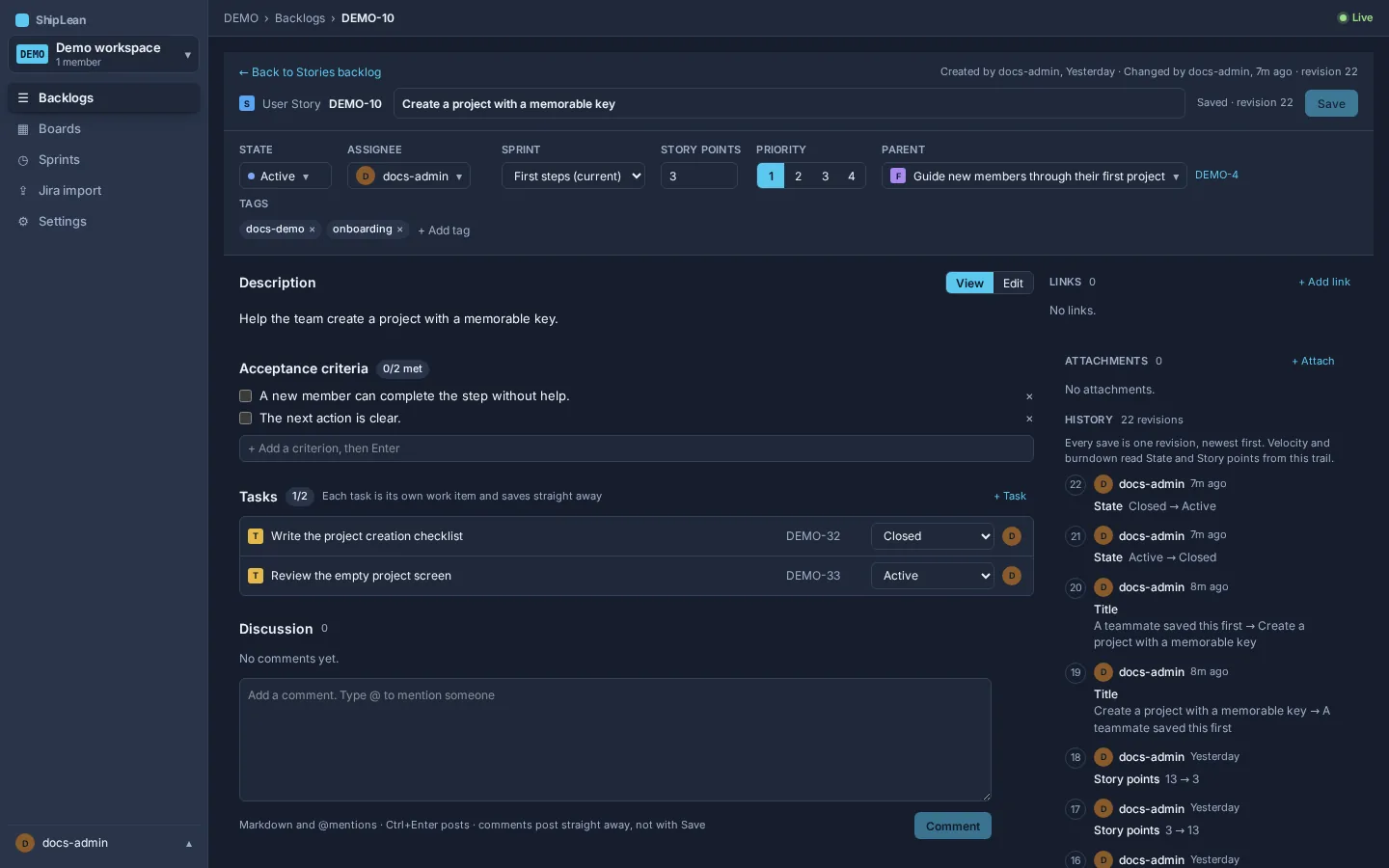
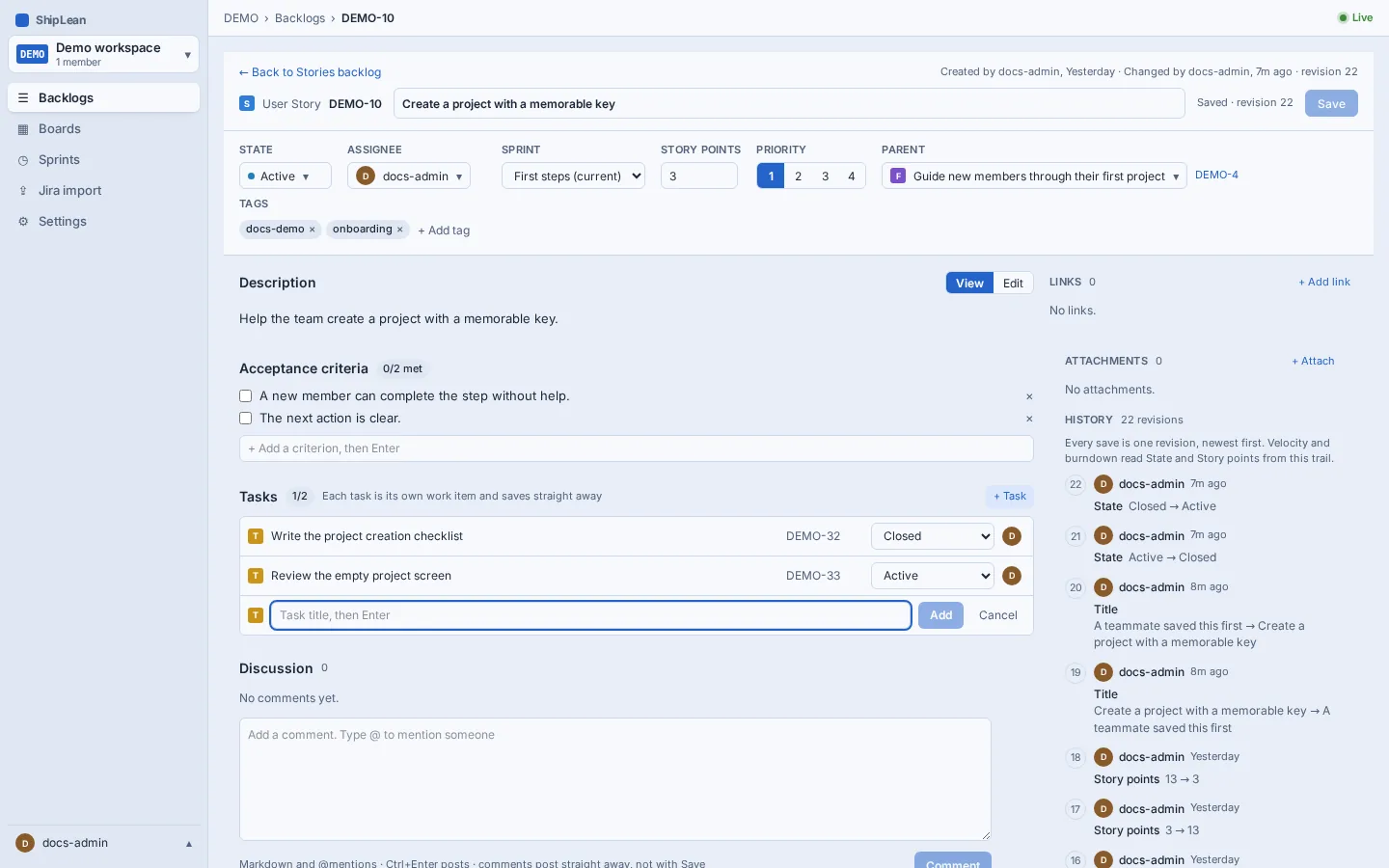
Open an item from a backlog, board or link to see its fields, description, child tasks and history. Changes in the item form stay as a draft until you choose Save. Comments, task states and attachments save on their own.
Address
Section titled “Address”- Item:
/p/:key/items/:itemKey. - Attachment:
/p/:key/items/:itemKey/attachments/:attachmentId. - You can also open an item in a modal over a project screen by adding
?item=:itemKeyto that screen’s address.
Overview
Section titled “Overview”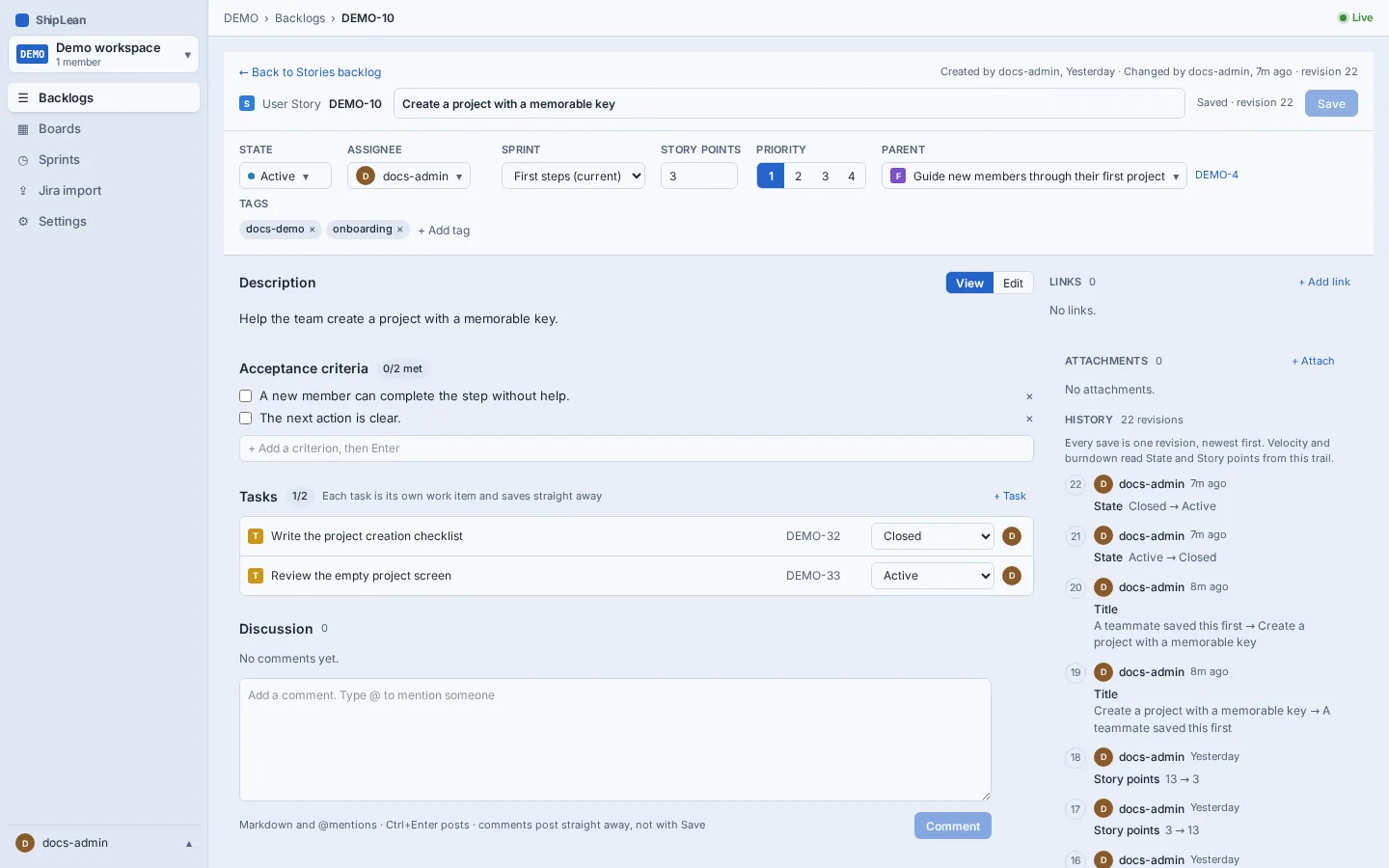
Edit fields and the description
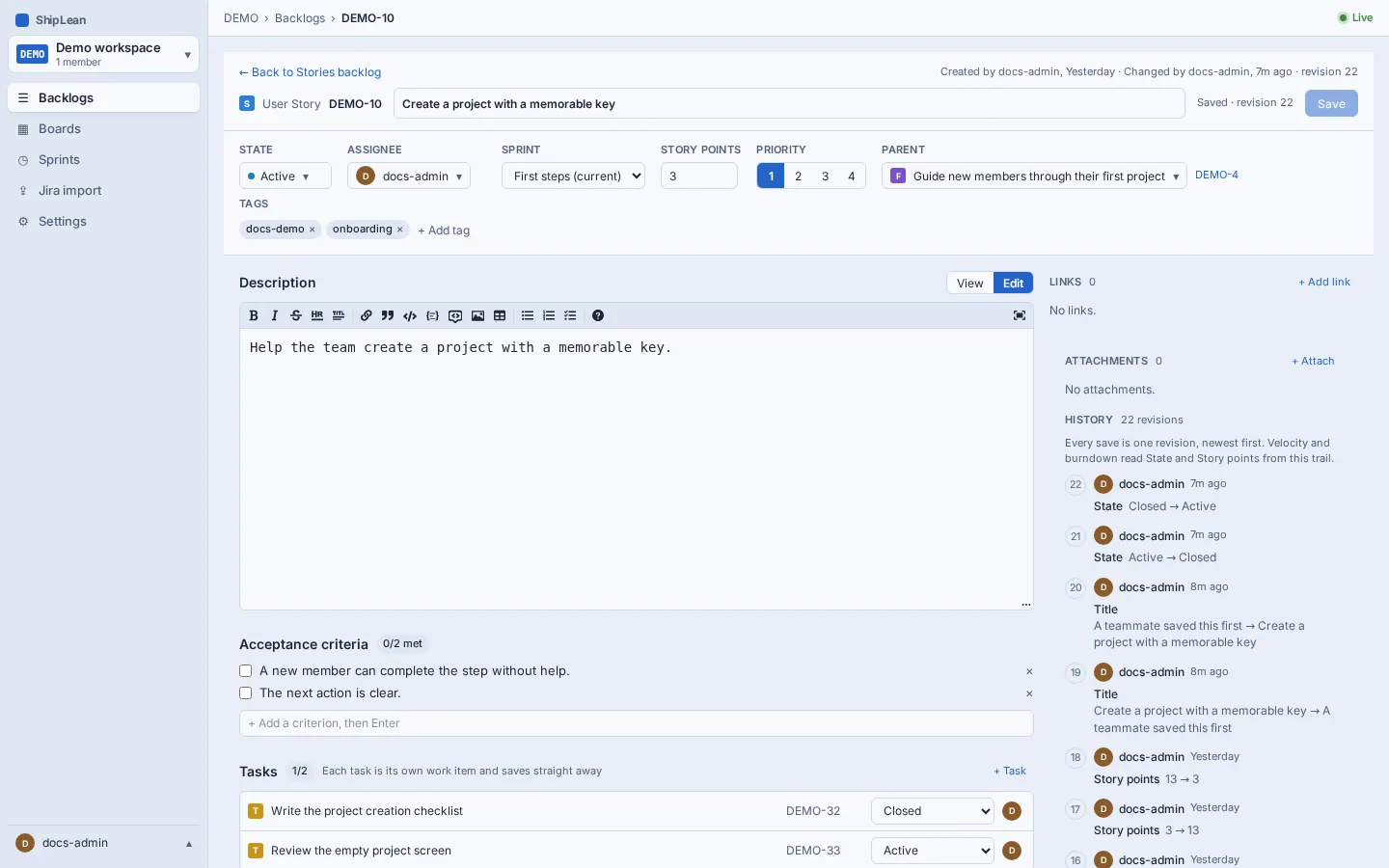
Section titled “Edit fields and the description”Edit the title and choose Save when you are ready. The fields strip has State, Assignee, Points, Priority, Parent and Tags. Stories, Bugs and Tasks also have a Sprint field. A Story has an Acceptance criteria checklist. A Bug has Severity and Repro steps. Priority describes when you want to fix a Bug. Severity describes how much it affects people.
Choose a value from a field menu, or edit the title or Markdown section. A changed-field list appears beside the Save status. Choose Save to write those draft changes as a revision, or Discard to restore the last saved values. If you leave with an unsaved draft, ShipLean asks whether to stay or leave.
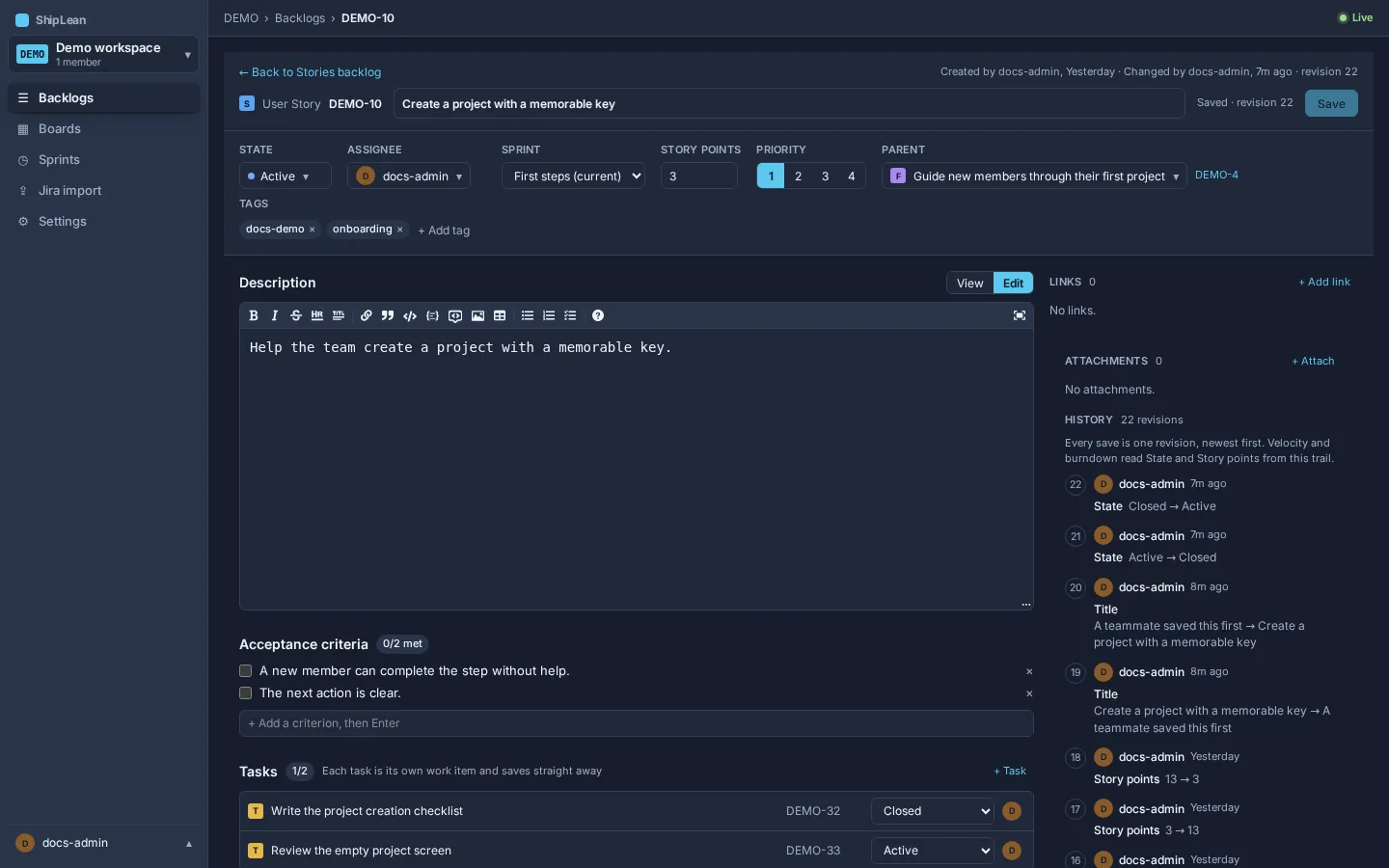
For Description or Repro steps, choose Edit to open the Markdown toolbar. Use the toolbar for formatting such as bold text, lists, links, and code. Choose View to read the rendered Markdown. Pasted images become attachments. If your draft includes an external image, ShipLean asks before saving it.
Add and update tasks
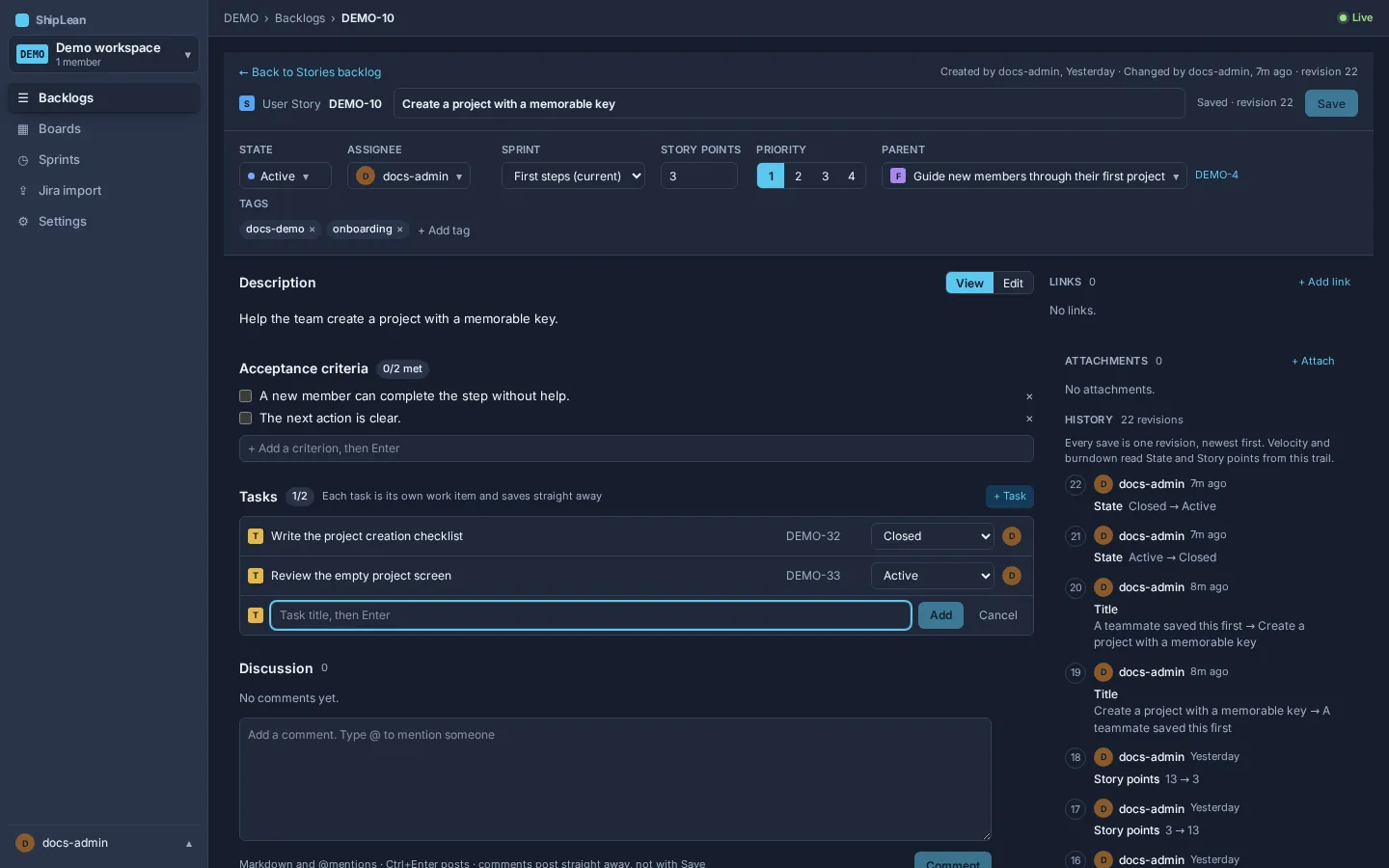
Section titled “Add and update tasks”Use the Tasks section on a Story or Bug to break the work into child Tasks. Choose + Task, enter a title, and add it. A Task is its own work item. Its state control saves immediately. Choose the title or key to open its full details. The count shows how many child Tasks are complete.
Discuss the work
Section titled “Discuss the work”Use Discussion to leave a comment or mention a project member with @. Comments save when you post, separately from the item form. Use Ctrl+Enter or ⌘+Enter to post. You can edit your own comments. A project admin can archive another member’s comment. Any project member can mark a comment as superseded, which keeps it in the discussion with a strike-through.
On a Feature the same comment stream is called Log, and it lists newest entries first. Entries from an agent are marked as agent activity.
Link work and code
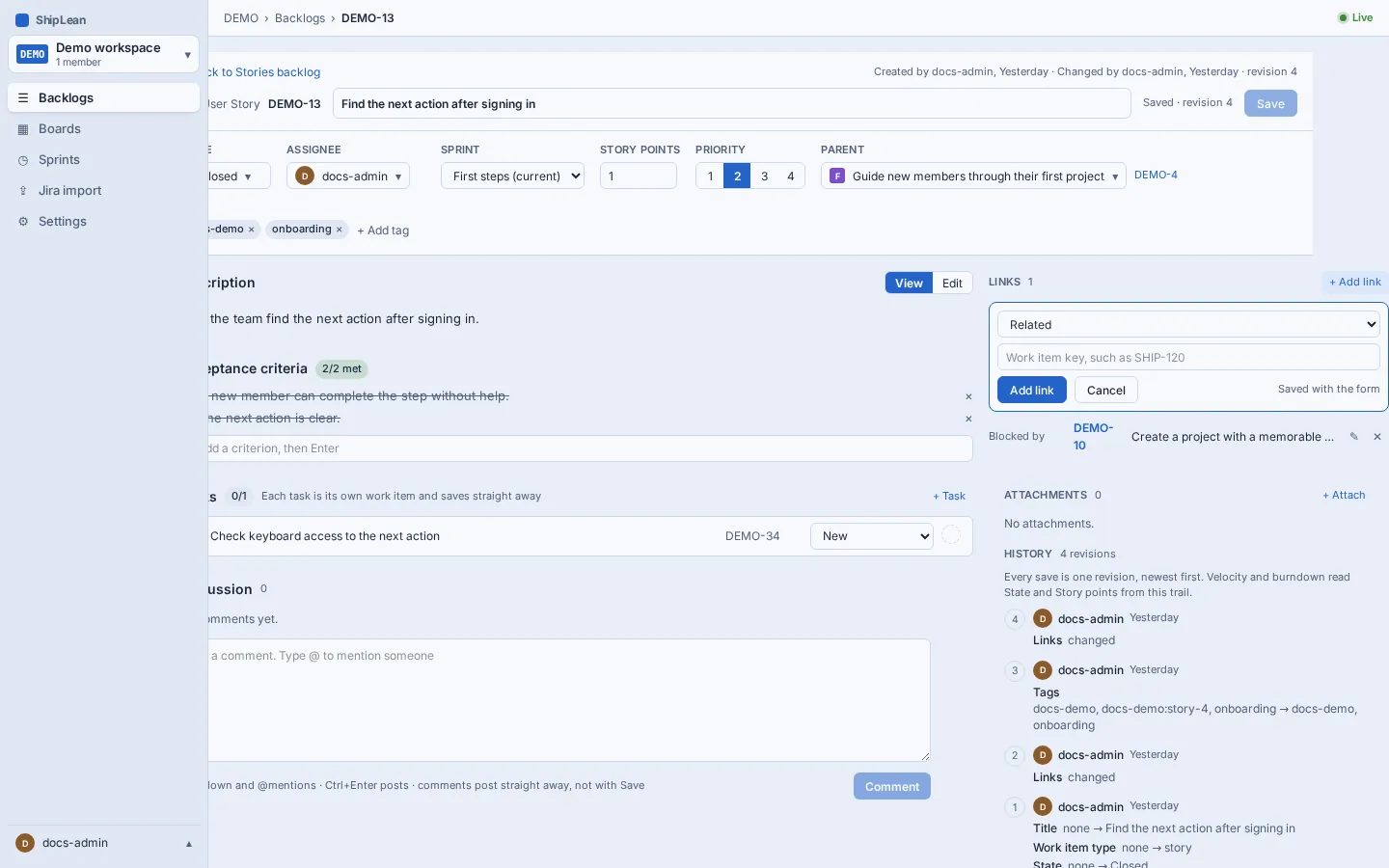
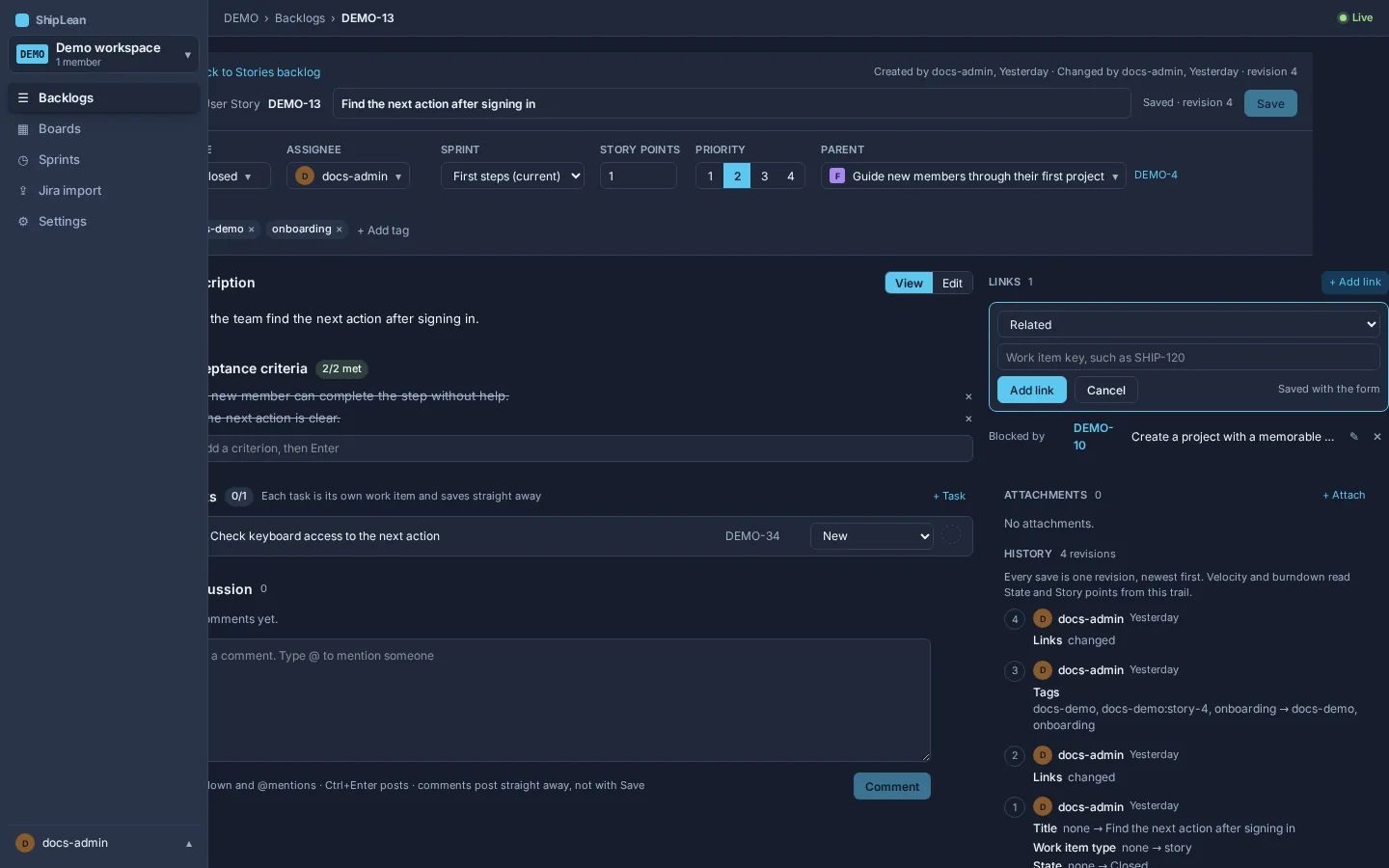
Section titled “Link work and code”Use Links to add a relationship to another work item or a URL. Add, edit, or remove a link in the form, then choose Save to keep the change. A linked pull or merge request on a Story, Bug, or Task can show a state badge when a provider webhook reports it. The badge reflects the latest reported state. See GitHub and GitLab links for provider setup.
Feature links use a separate section. That section saves immediately and can show GitHub or GitLab issue, pull-request, or merge-request details. See Features and the Feature editor.
Attach files and read history
Section titled “Attach files and read history”Use the side rail to upload an attachment or open one already there. Markdown attachments open on their own attachment page. Images open in a preview. Other files download. You can remove an attachment from the rail. Attachments stay with the item and can hold research notes, plans, and supporting files.
The History section lists saved revisions with who changed the item, when, and the fields that changed. The header also shows who created and last changed the item, and the current revision. Discussion comments are separate from revision history.
Resolve a save conflict
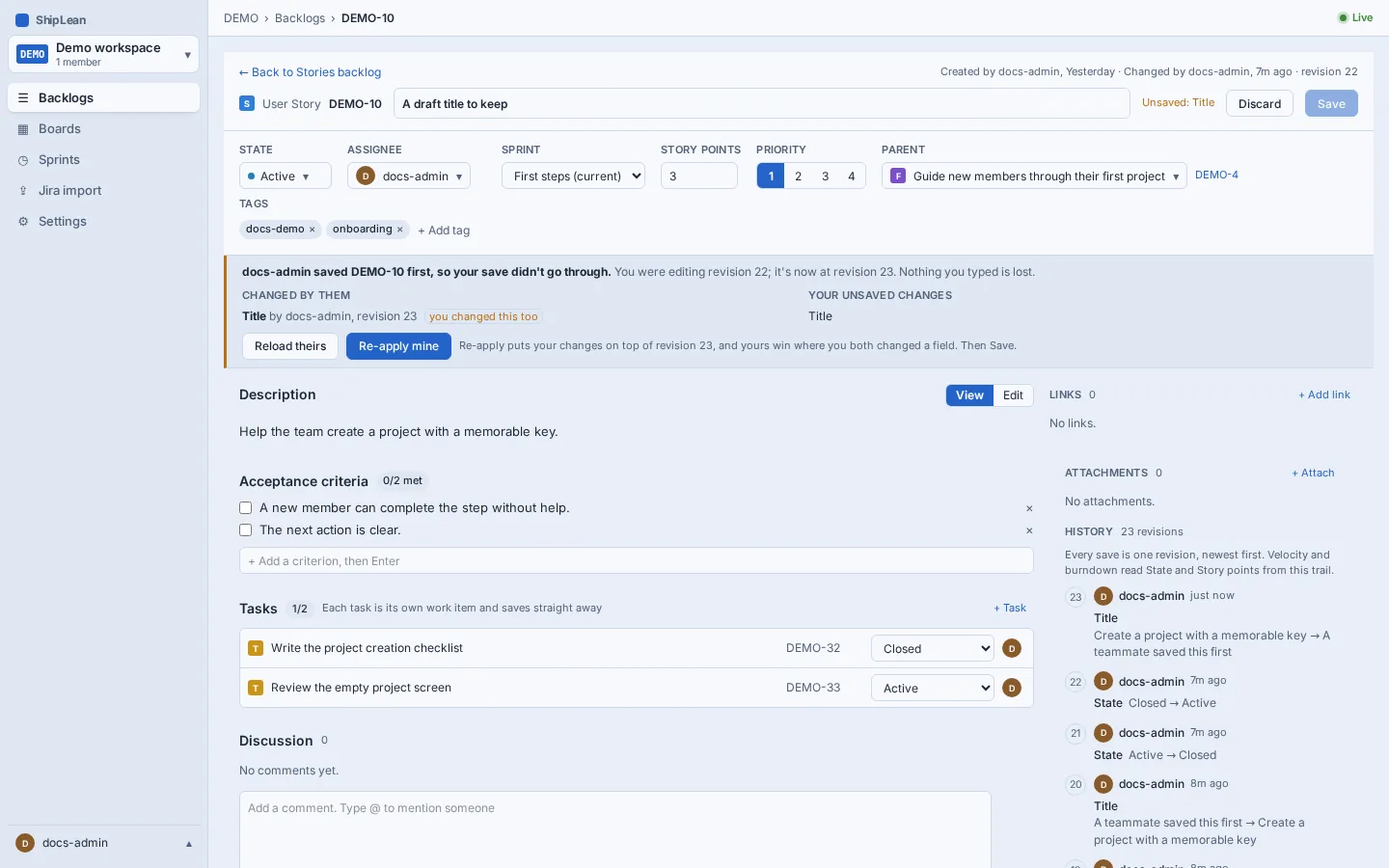
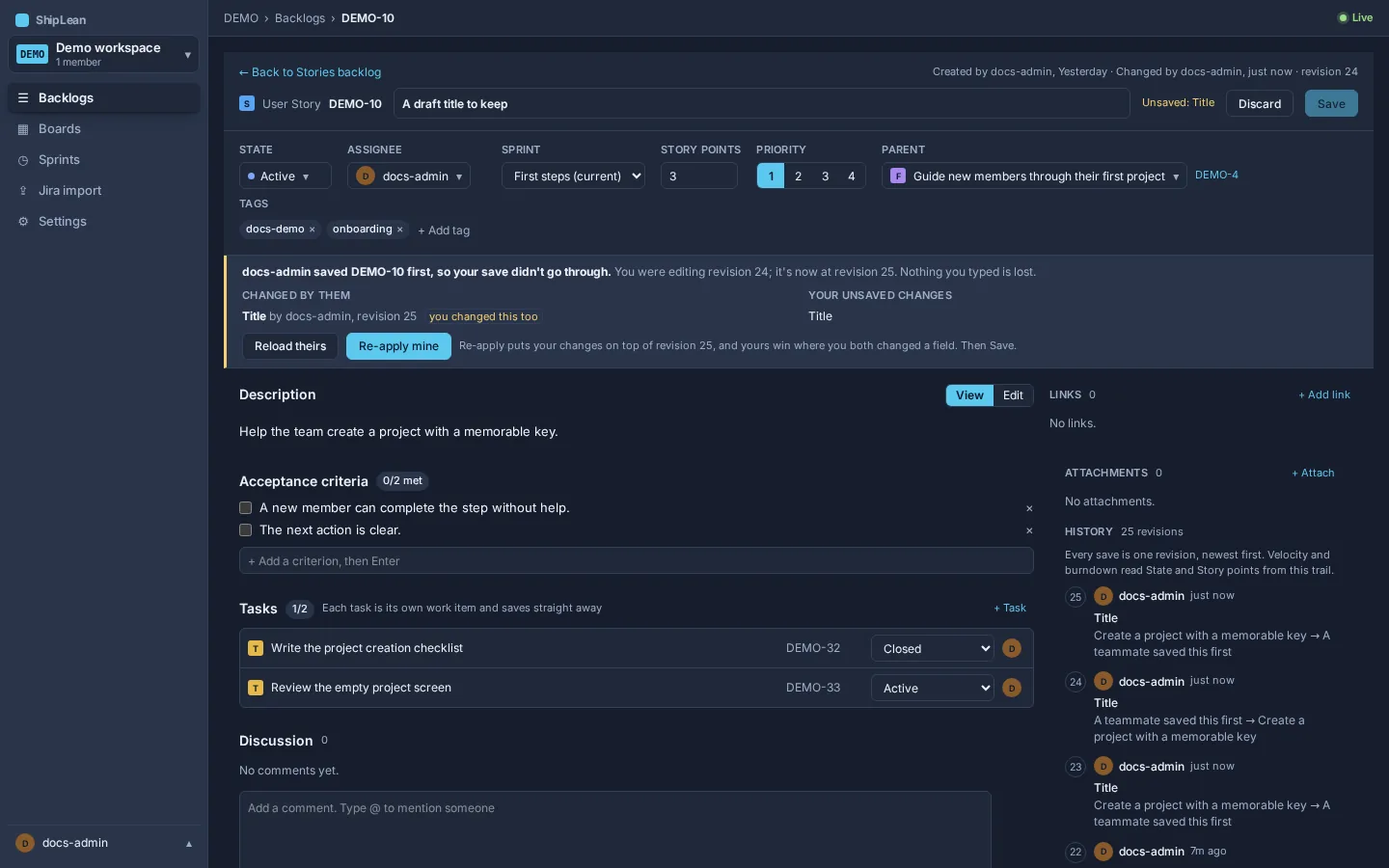
Section titled “Resolve a save conflict”If another person saves first, your Save does not overwrite their revision. ShipLean keeps your draft and shows a conflict banner. The banner shows who saved first, what changed in their revision, your unsaved fields, and any fields you both changed.
- Choose Reload theirs to load the newer revision and drop your draft.
- Choose Re-apply mine to put your draft on top of the newer revision. Your value wins for a field you both changed. Then choose Save to write the result as the next revision.
Change state or remove an item
Section titled “Change state or remove an item”Choose State and select one of the states configured for that work item type in project settings. State categories determine how the project treats the item. To remove an item from active work, select a state in the Removed category. The item is hidden from normal backlogs. ShipLean does not hard-delete it.
Options and shortcuts
Section titled “Options and shortcuts”- Ctrl+S or ⌘+S saves the item form. You can also choose Save.
- Ctrl+Enter or ⌘+Enter posts a comment.
- A new Task’s state saves immediately. Other field edits in the main form need Save.