

Run Kanban
Use a board to follow work as it moves through your team’s workflow. For Kanban, keep work in the backlog and move cards across the board as their state changes. You do not need to create or plan sprints.
Map columns to your workflow
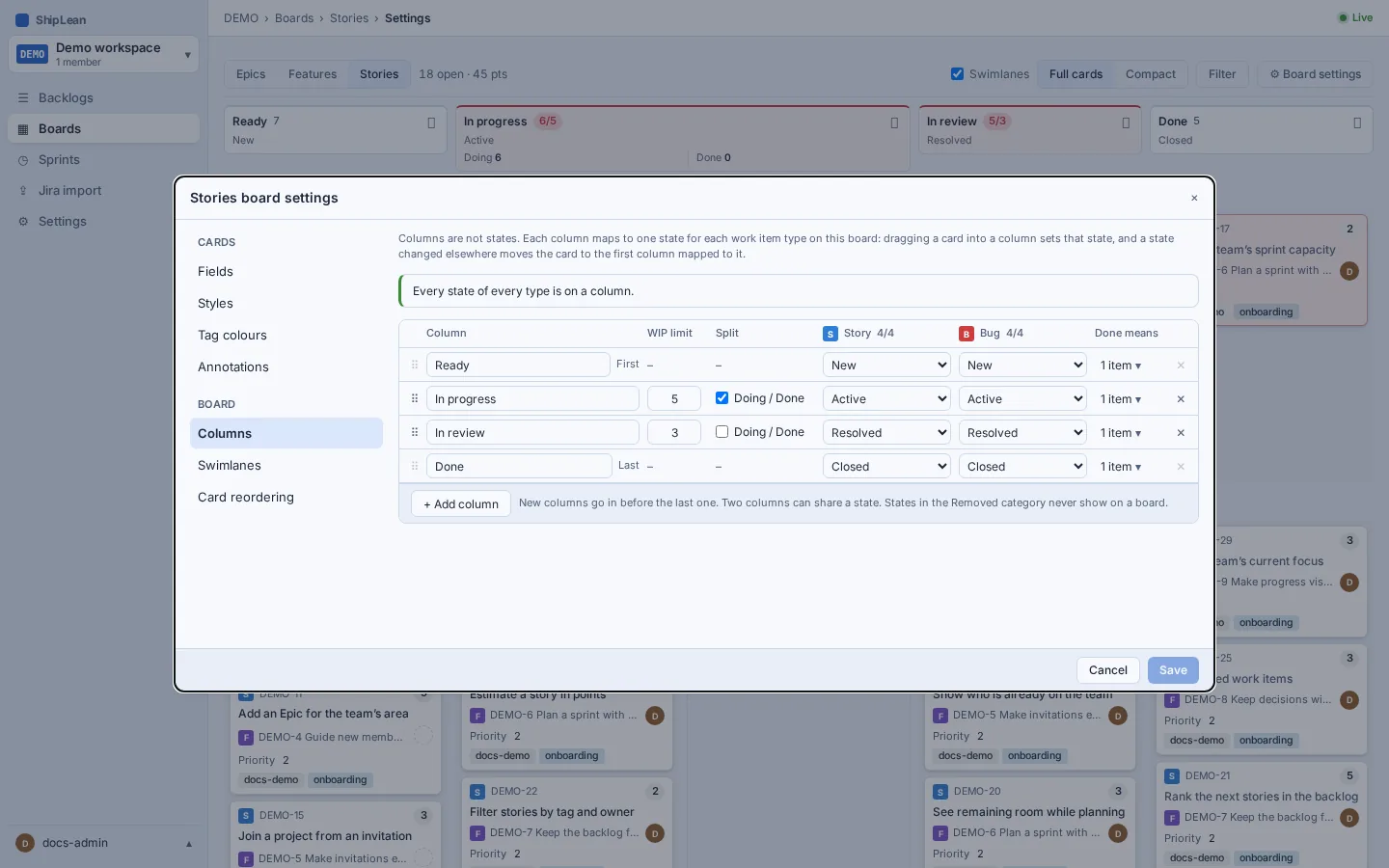
Section titled “Map columns to your workflow”Open Boards, select Stories, then open Settings and Columns. Rename columns to match the steps your team uses, then map each Story and Bug state to its column. A column can contain more than one state. Make sure every state you use is mapped.
The default state names are New, Active, Resolved, Closed, and Removed. Your project may have different states. Each state also belongs to a workflow category. The board maps the named states into columns. Removed work does not appear as a board column.
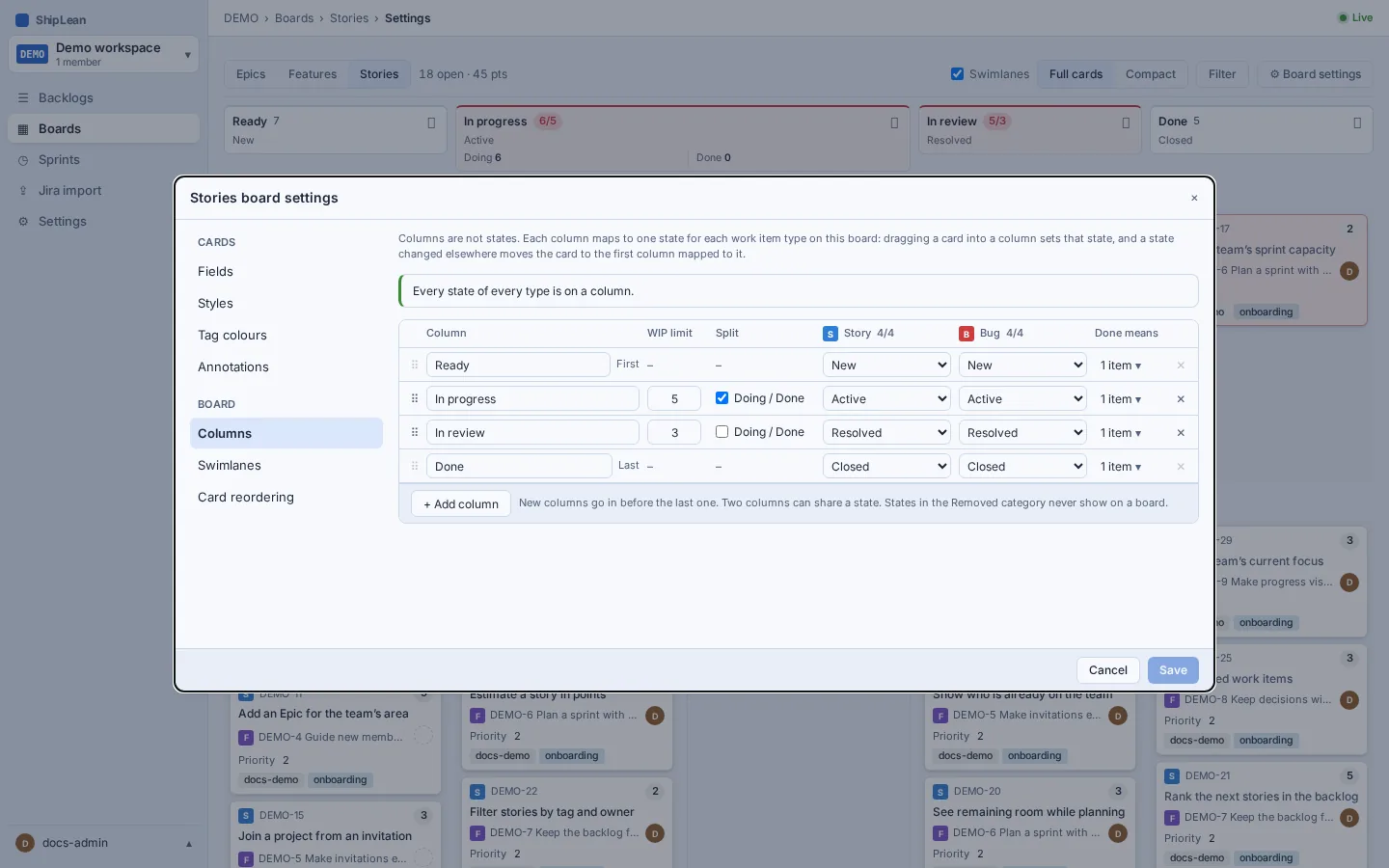
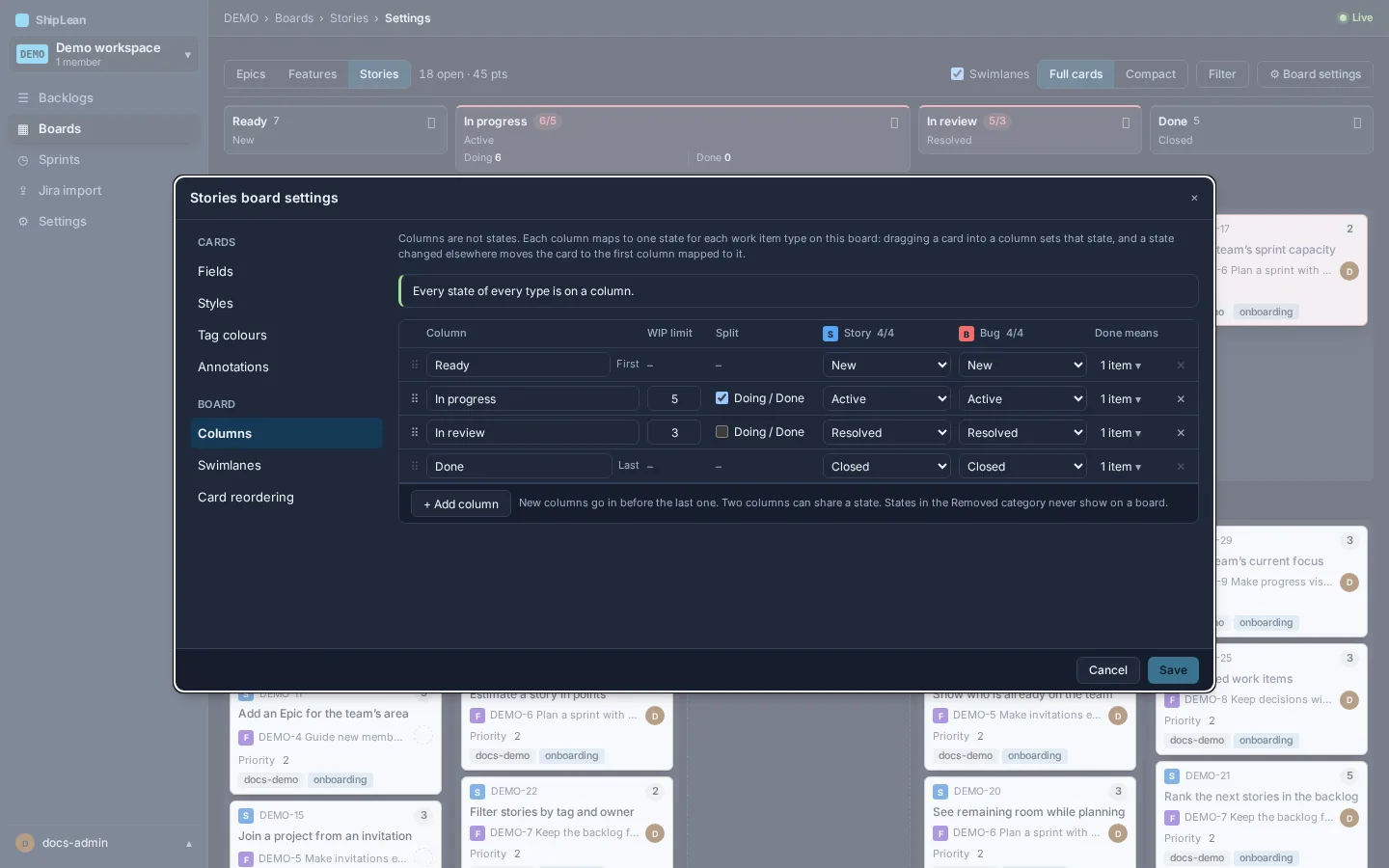
See Board settings for state mapping and saving changes.
Limit work in progress
Section titled “Limit work in progress”Set a WIP limit on a middle column to show when its card count is over the limit. The first and last columns cannot have a WIP limit. A limit is a visible signal for the team, not a block on moving work.
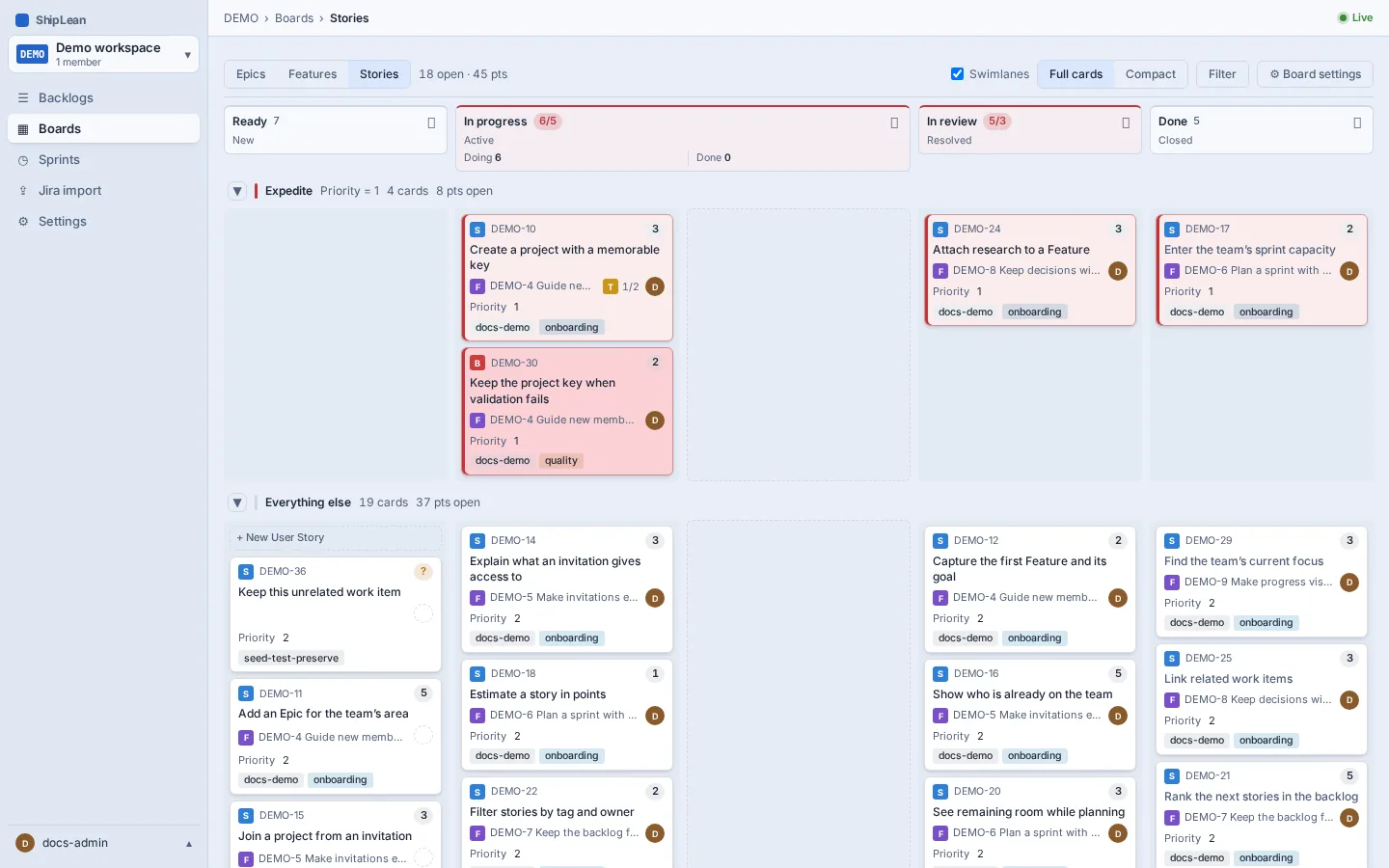
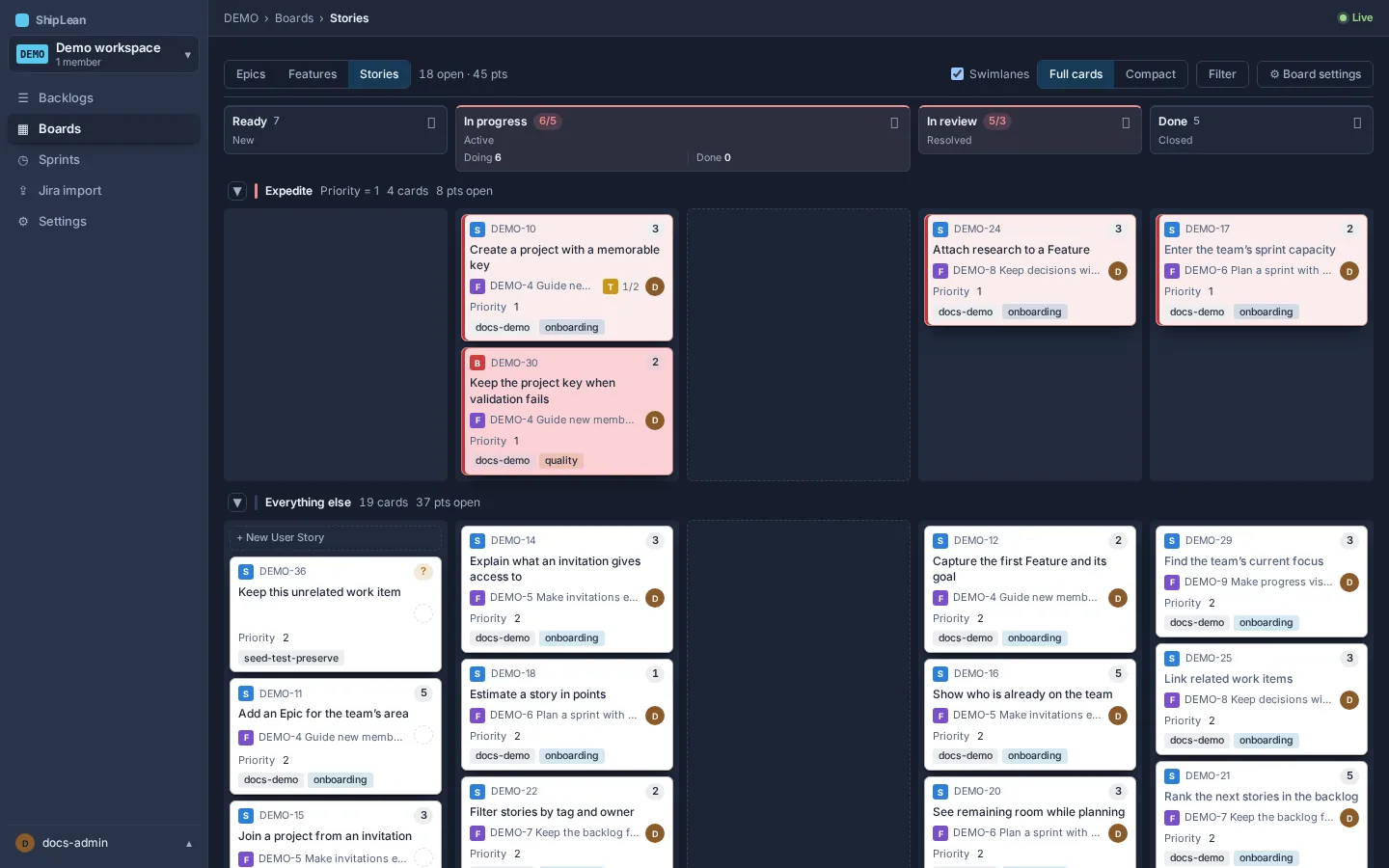
Use split columns when one state needs a clearer handoff. A middle column can be split into Doing and Done halves. The split does not create another state. Both halves represent the states mapped to that column.
Agree on what done means
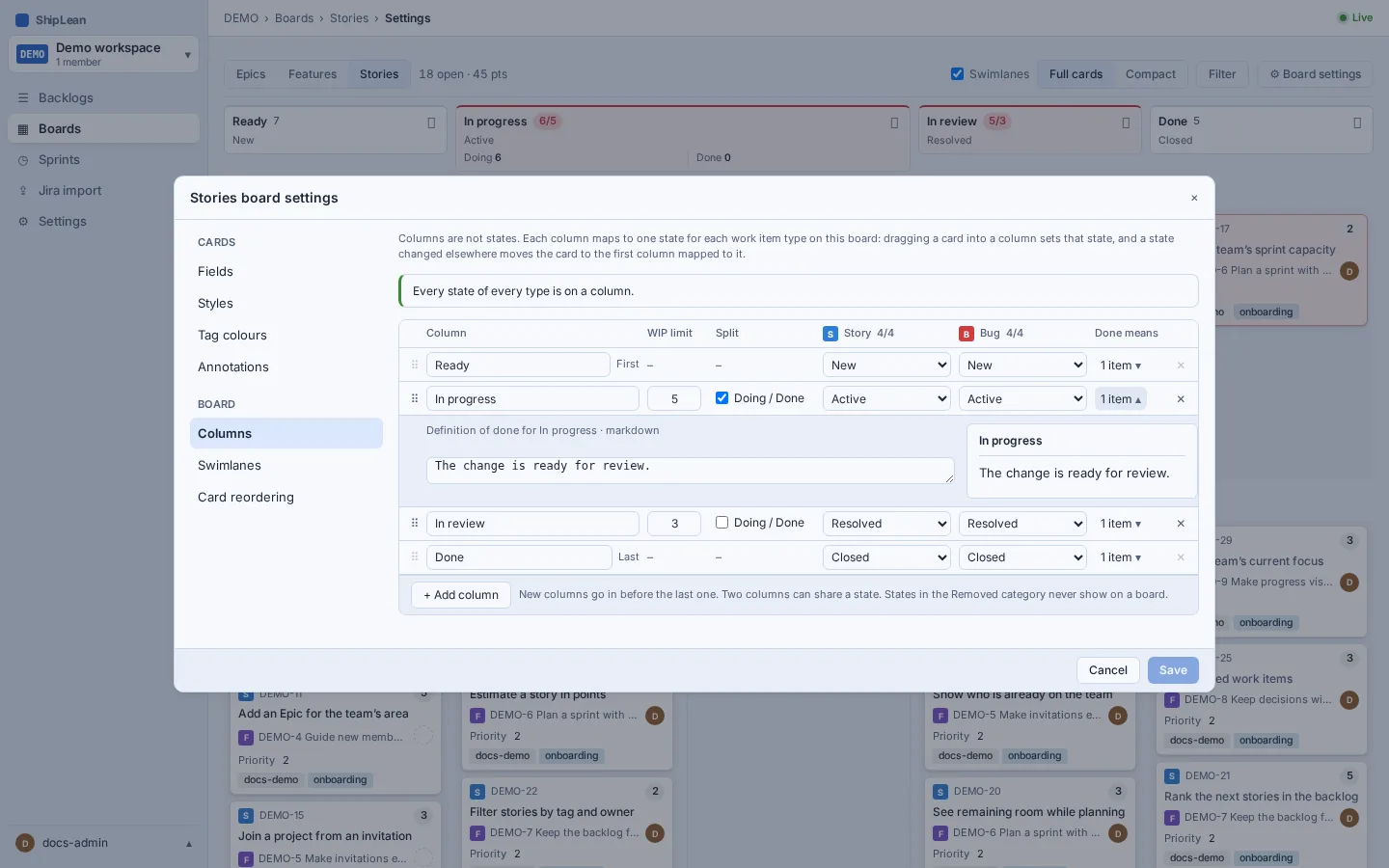
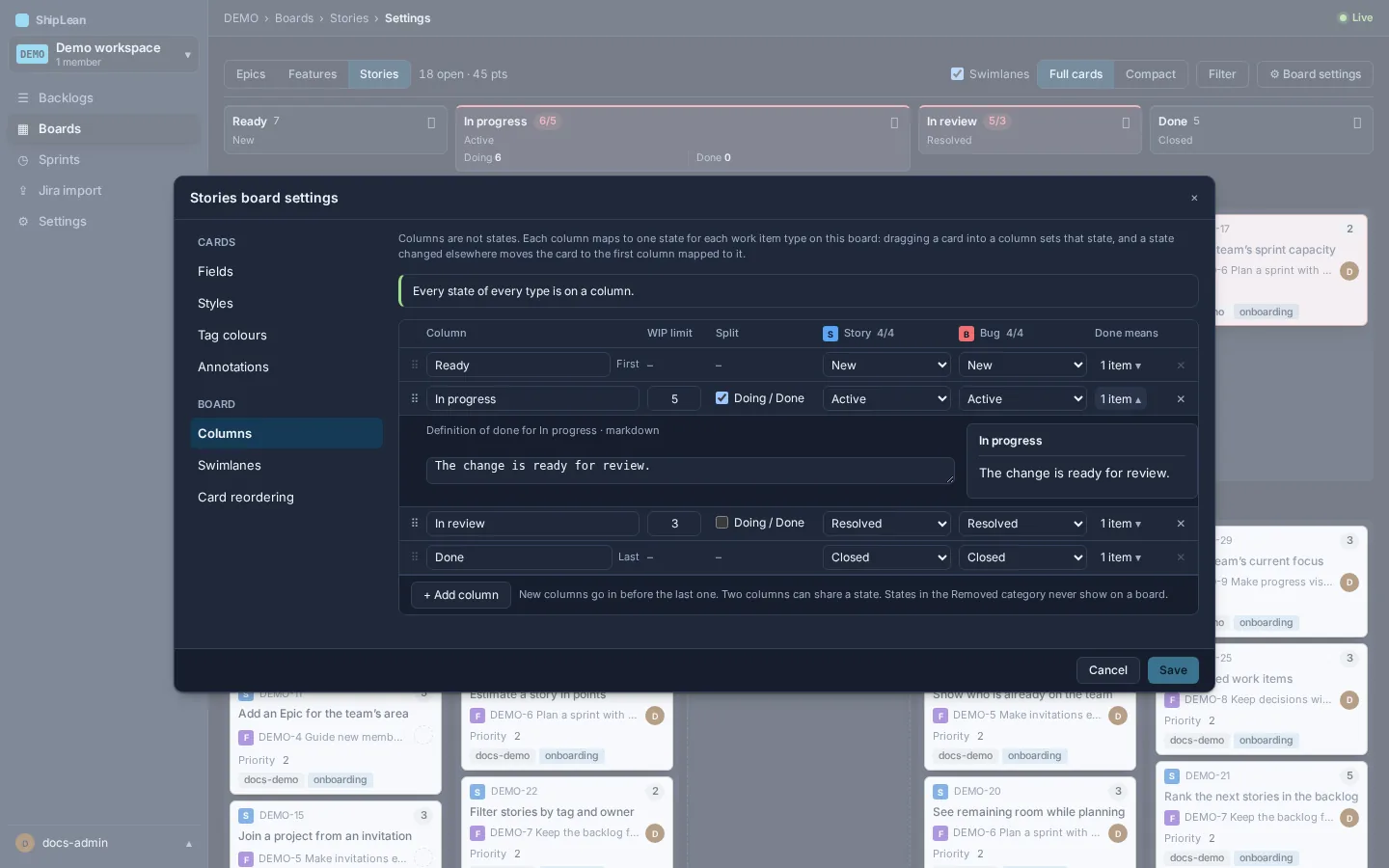
Section titled “Agree on what done means”Add a definition of done to a column on the Columns page of Board settings. Write the checks the team expects before moving an item on. The text appears on the board as a reminder. It does not automatically validate the work.
Keep the backlog ranked so the team can pull the next item when there is room. Review WIP limits and column mappings with the team as the workflow changes. See Boards for moving cards and Board settings for other options.