

Features and the Feature editor
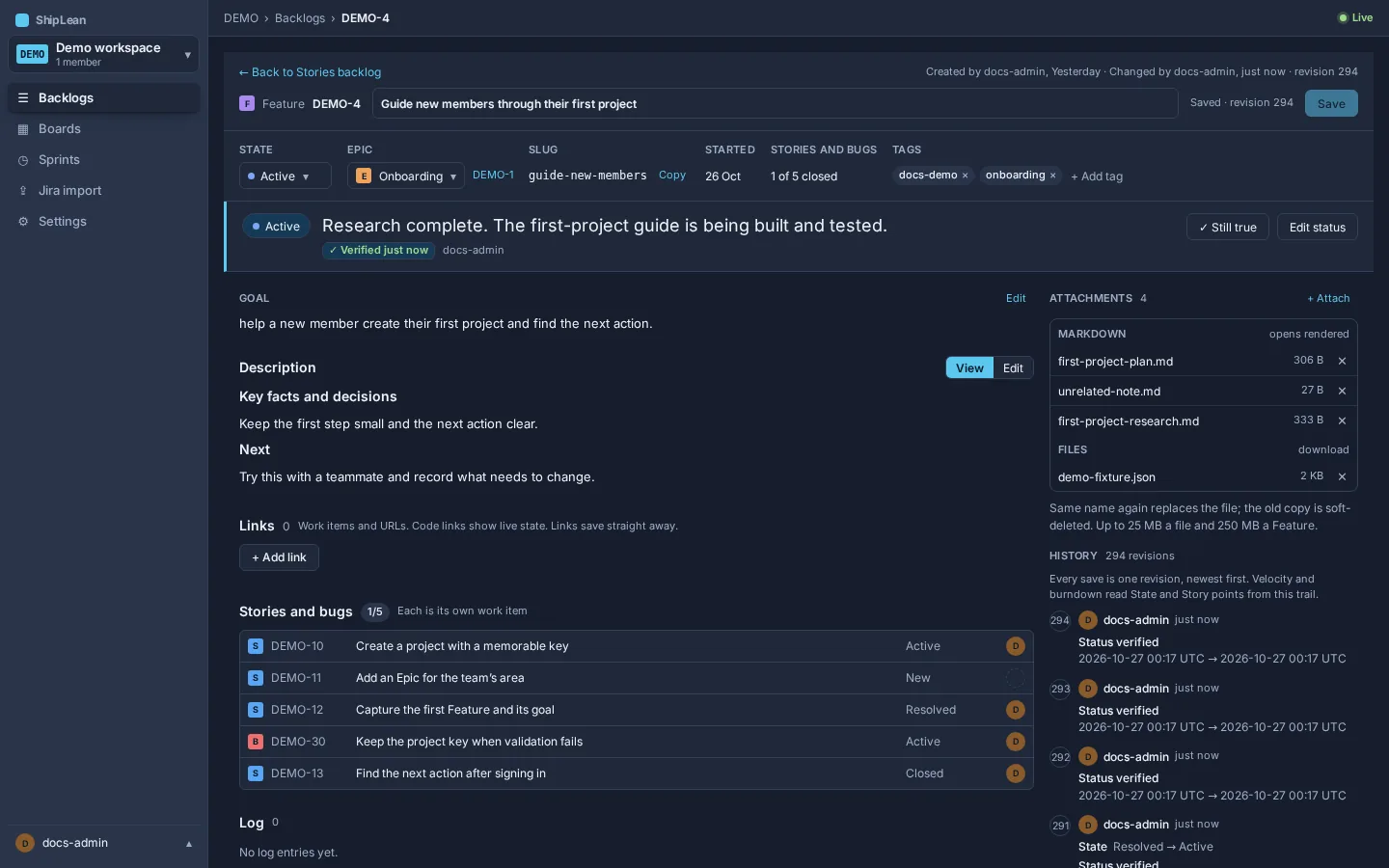
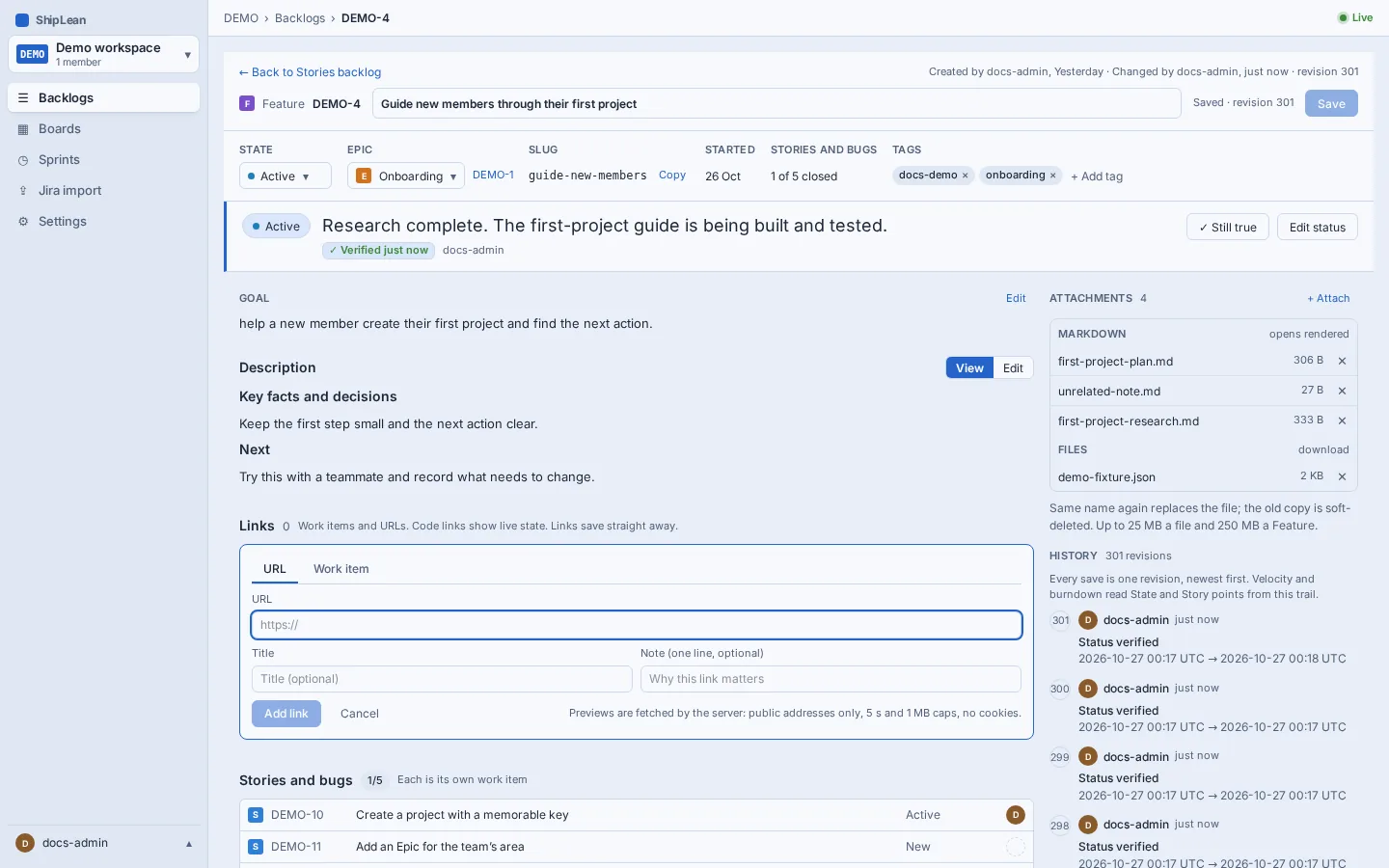
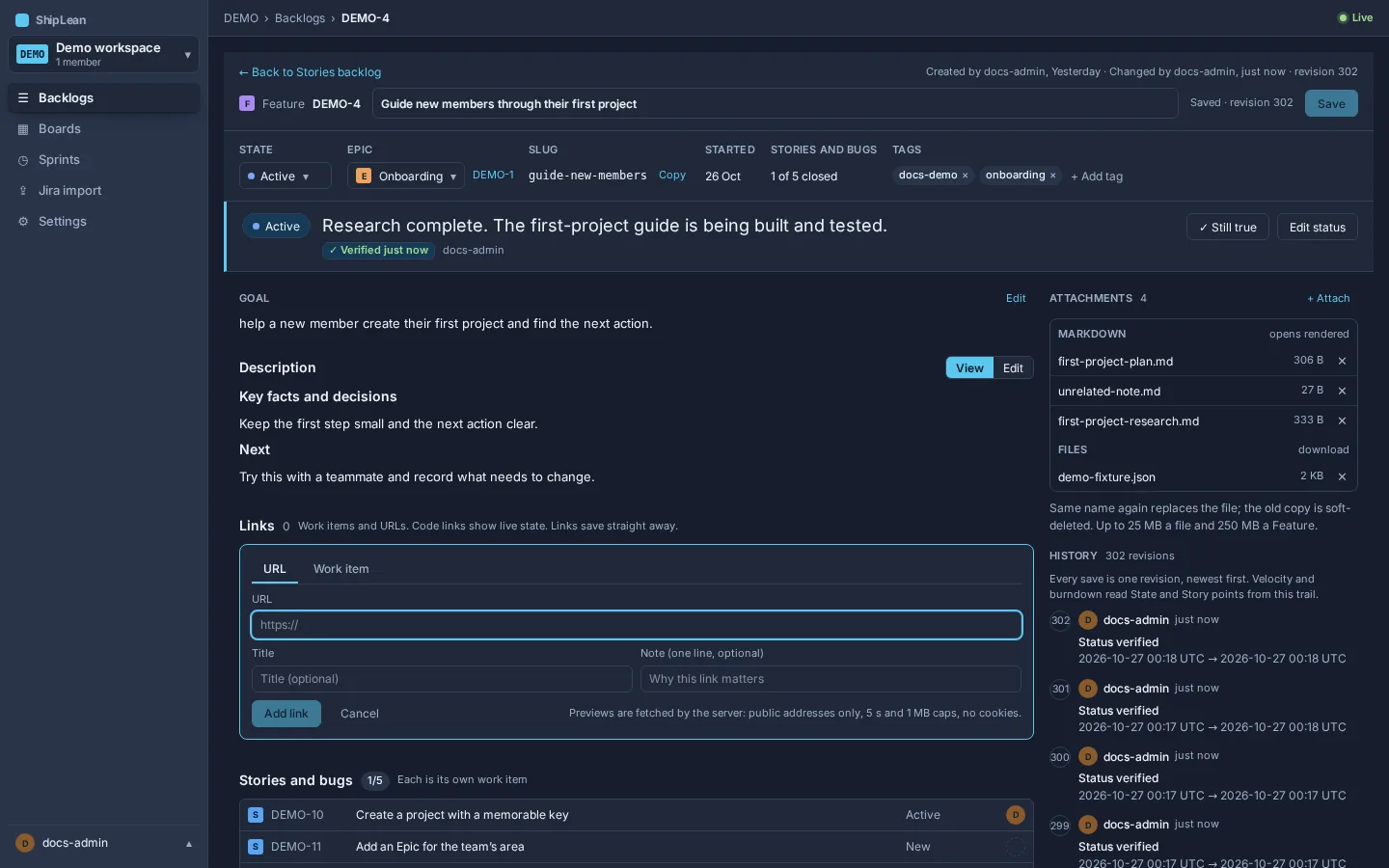
A Feature describes an outcome and groups the Stories and Bugs that contribute to it. Use the editor to keep its goal, current status, research, links and progress with the work.
Address
Section titled “Address”- Open a Feature from a backlog or link:
/p/:key/items/:itemKey. - Open one of its Markdown attachments:
/p/:key/items/:itemKey/attachments/:attachmentId.
Overview
Section titled “Overview”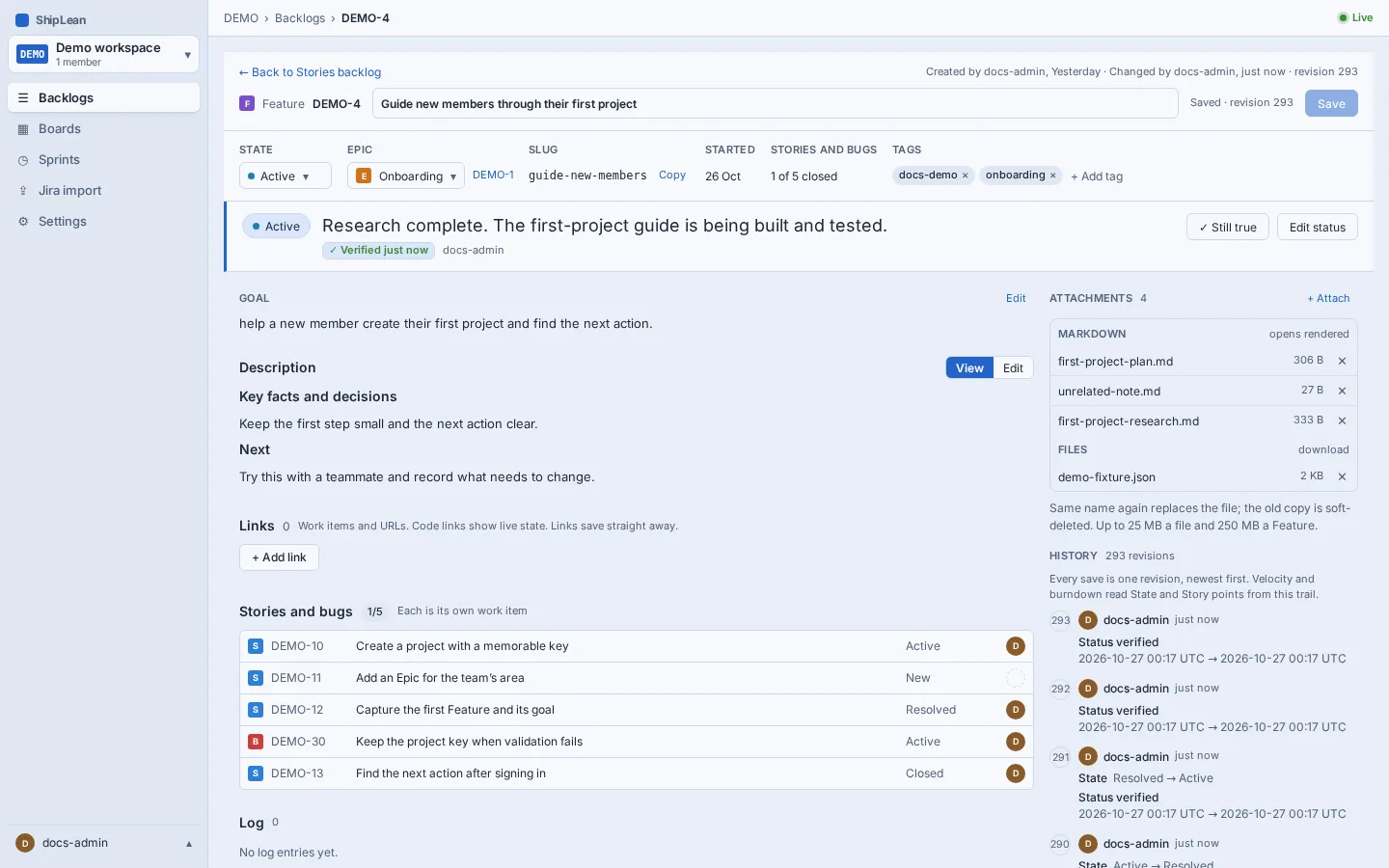
Create a Feature
Section titled “Create a Feature”On the Features backlog, choose + New Feature. Enter a title. If useful, choose a parent Epic, edit the suggested slug, add a goal and status line, or choose a starting state. The slug is checked for availability as you edit it. Choose Create Feature to save it and open its editor. You can add a longer description, links and attachments after creation.
Write the goal and status
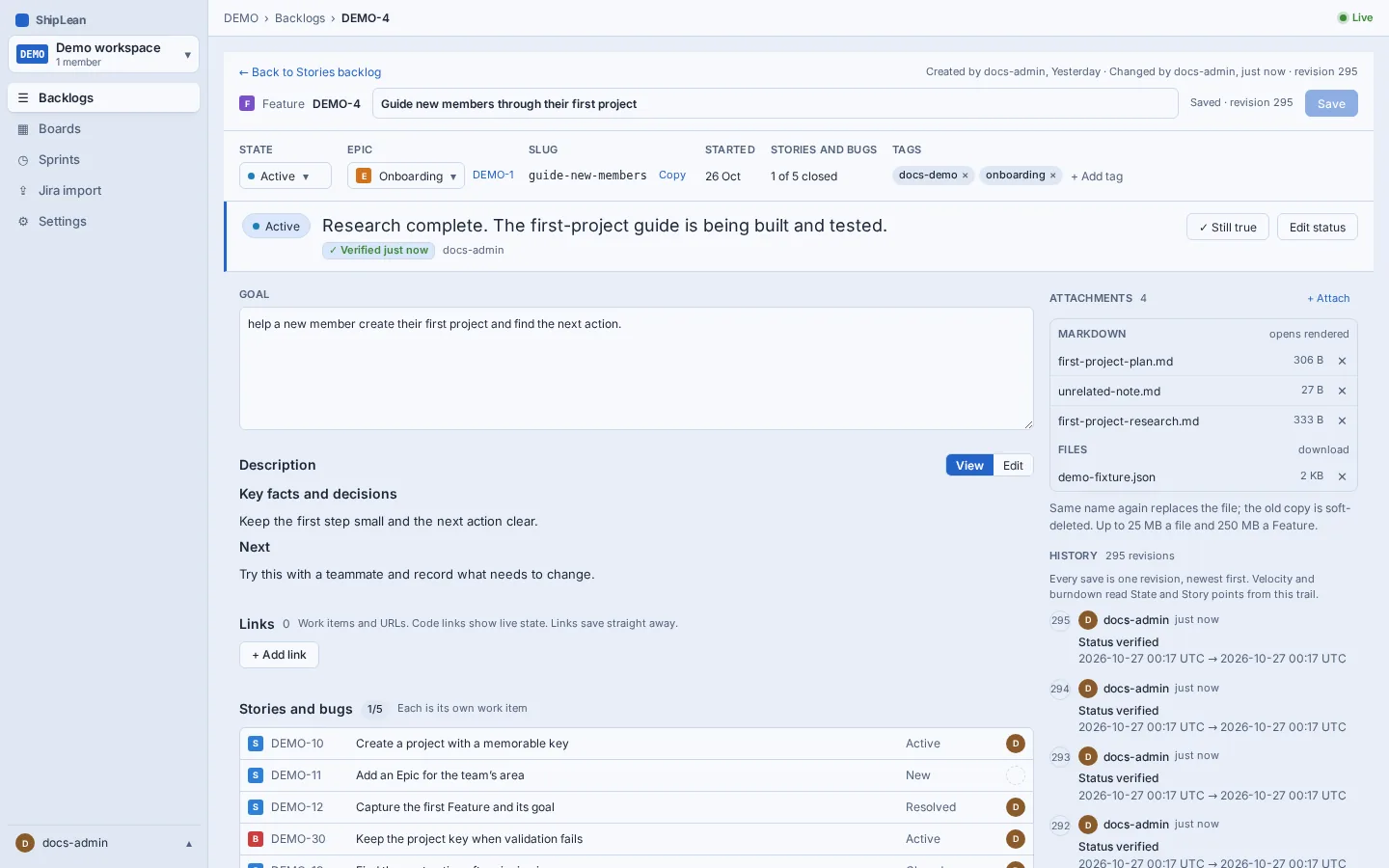
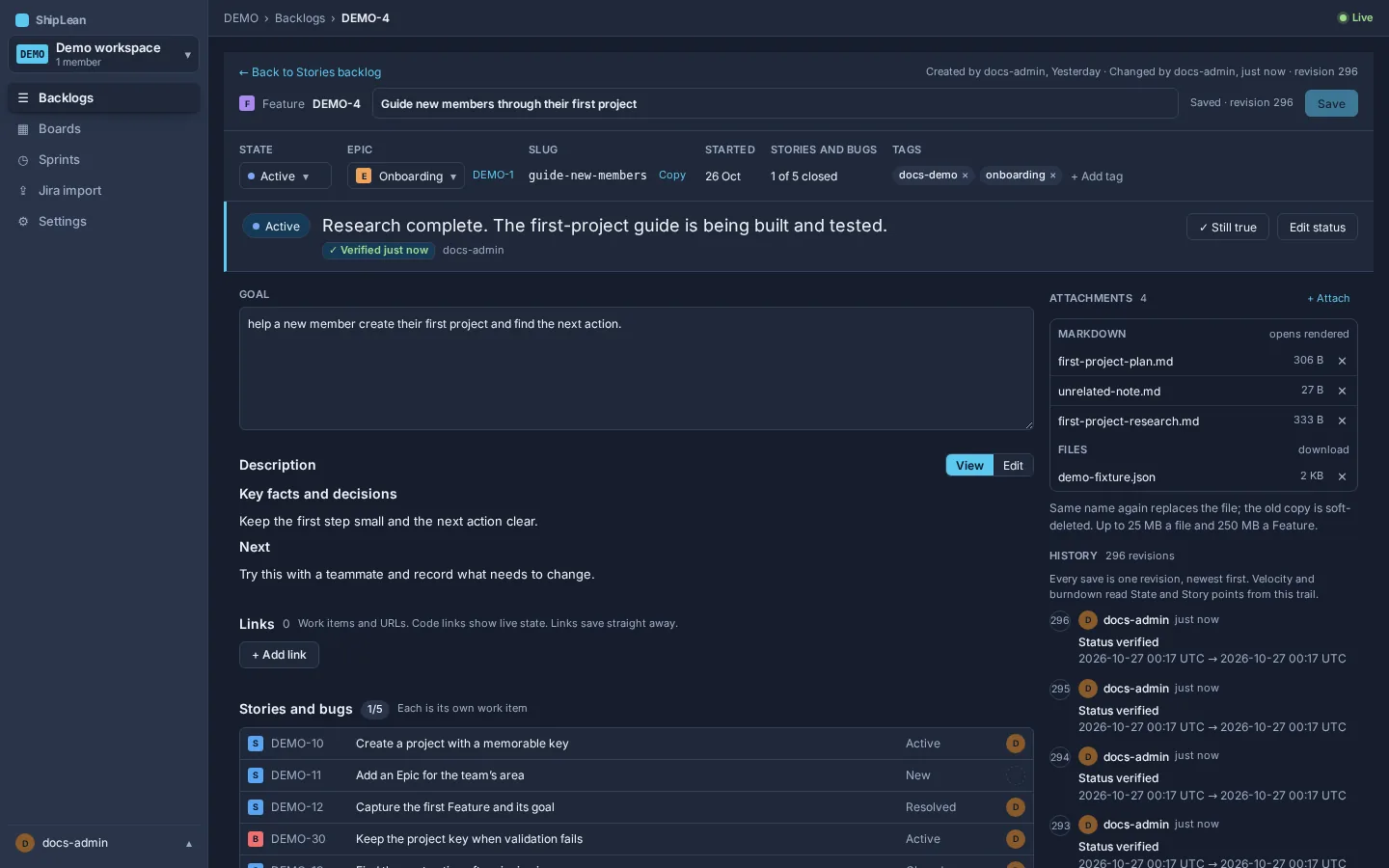
Section titled “Write the goal and status”Use Goal for the outcome the Feature should achieve, in one or two sentences. Choose Edit beside the goal, make your change, and choose Save in the item header.
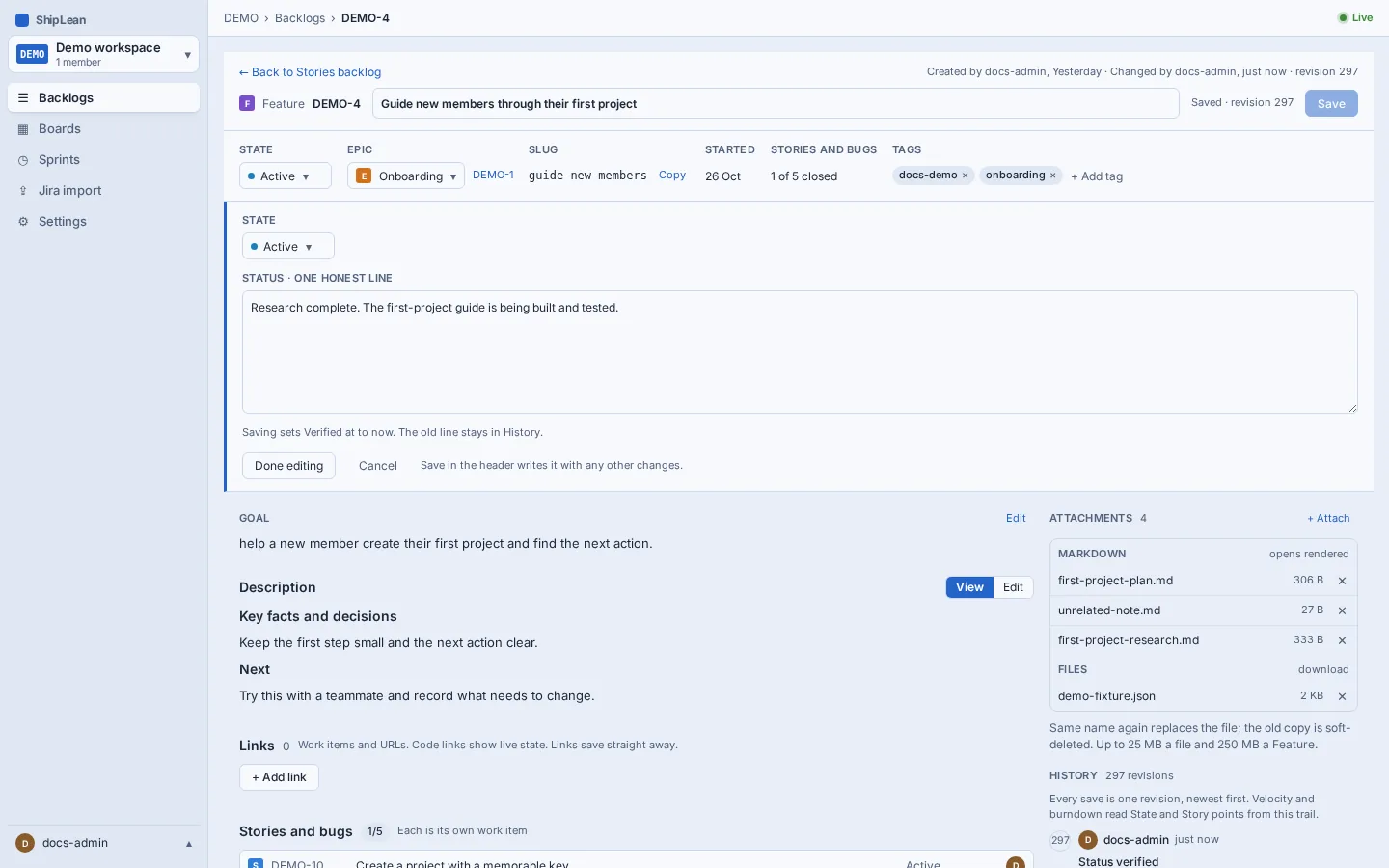
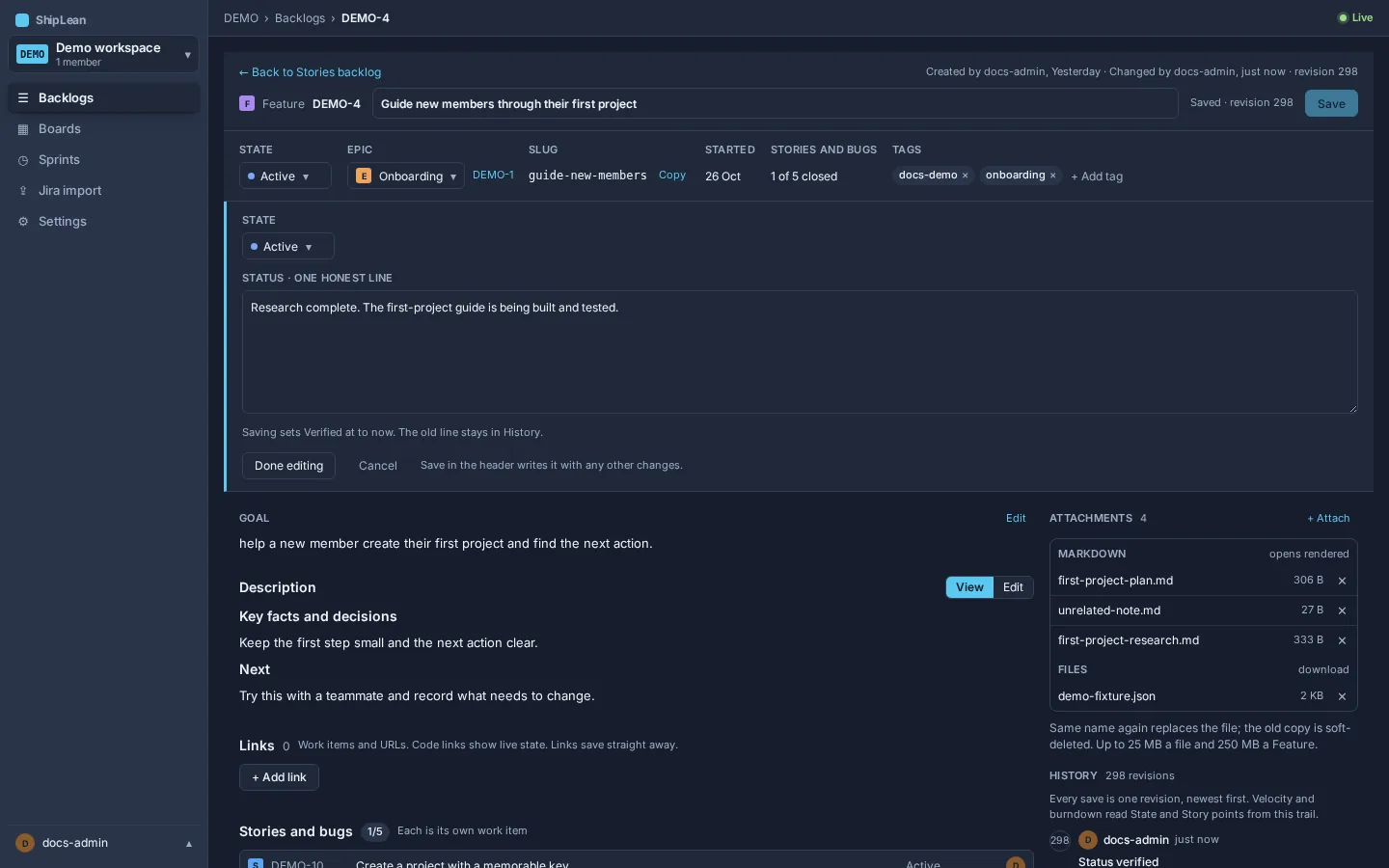
The status band shows the Feature’s state and a short status line. Choose Edit status to change either value. Save it with the rest of the item draft. Still true confirms that the status line still holds and refreshes its verification stamp. You must save or discard other draft changes first. The stamp shows who last confirmed it and when. The stamp marks an older confirmation as stale.
Set the Epic and slug
Section titled “Set the Epic and slug”Choose the Epic field to change the Feature’s parent, or select its key to open that Epic. The slug is set when you create the Feature, cannot be changed afterward, and can be copied from the strip. The strip also shows when the Feature started and how many of its Stories and Bugs are closed.
Keep research with the Feature
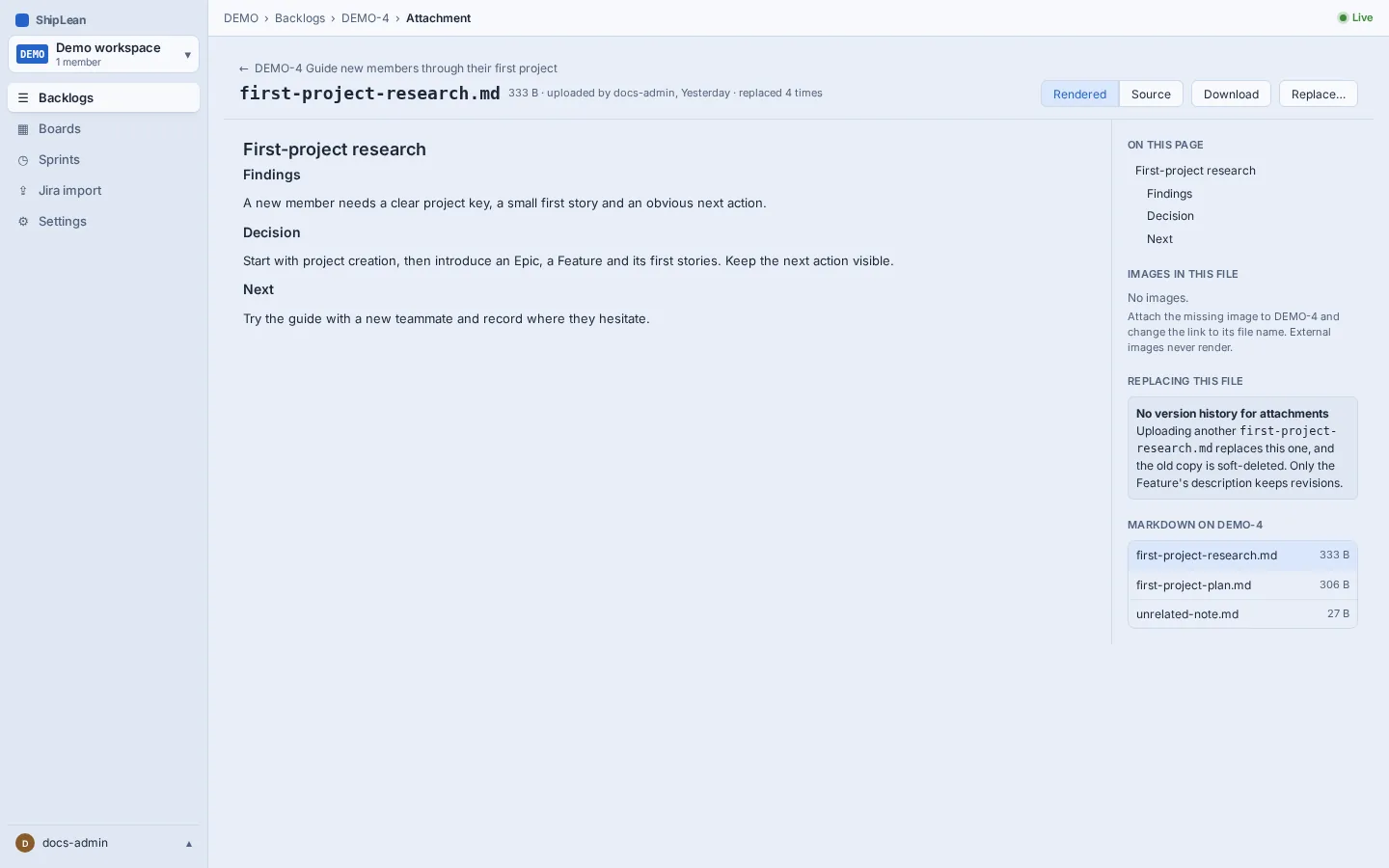
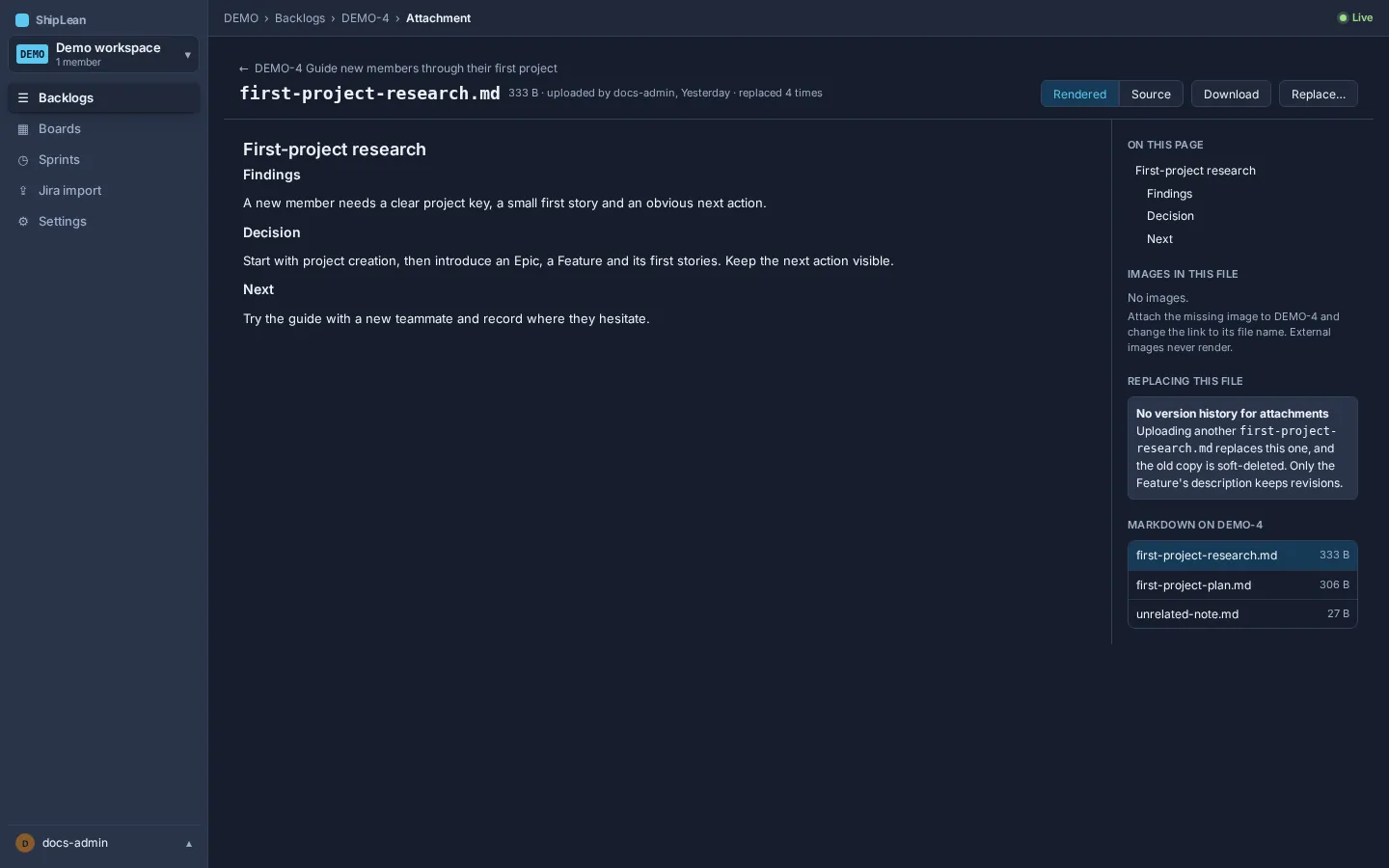
Section titled “Keep research with the Feature”Use the description for the current summary, decisions, and next steps. Upload research notes, plans, and other evidence to Attachments in the side rail. Markdown files open on their own attachment page. Images open in a preview. Other files download. Add a new attachment for each research note, so teammates and agents can find the record beside the Feature.
Link work and external references
Section titled “Link work and external references”The Links section groups related work items separately from URL cards. Choose + Add link to select a work item or add a URL. These links save immediately, outside the Feature’s main Save draft. Code cards can show GitHub or GitLab issues and pull or merge requests, along with a state when one is known. The card shows whether that state came from a live read, a webhook, or an agent. It also shows when the state was reported, if a time is available. Web pages appear in a separate group. A card without a preview still keeps its URL and host. See GitHub and GitLab links for setup and access details.
Read progress and activity
Section titled “Read progress and activity”The Features backlog shows each Feature’s story-point sum and progress through its Stories and Bugs, including items under nested Features. In the editor, the strip shows how many of the Feature’s Stories and Bugs are closed. The section below lists each child item with its state. Tasks count under their Story or Bug, not in the Feature’s progress count.
Use Log to read or add discussion comments. It shows newest entries first, including agent activity. History in the rail shows saved revisions and their field changes. Attachments and comments are separate records.
Options and shortcuts
Section titled “Options and shortcuts”- The state menu offers the states configured for Features in this project.
- The slug has a Copy button. It is read-only after creation.
- Still true updates the verification stamp without a separate confirmation dialog. Save or discard other draft edits before using it.