

Taskboard
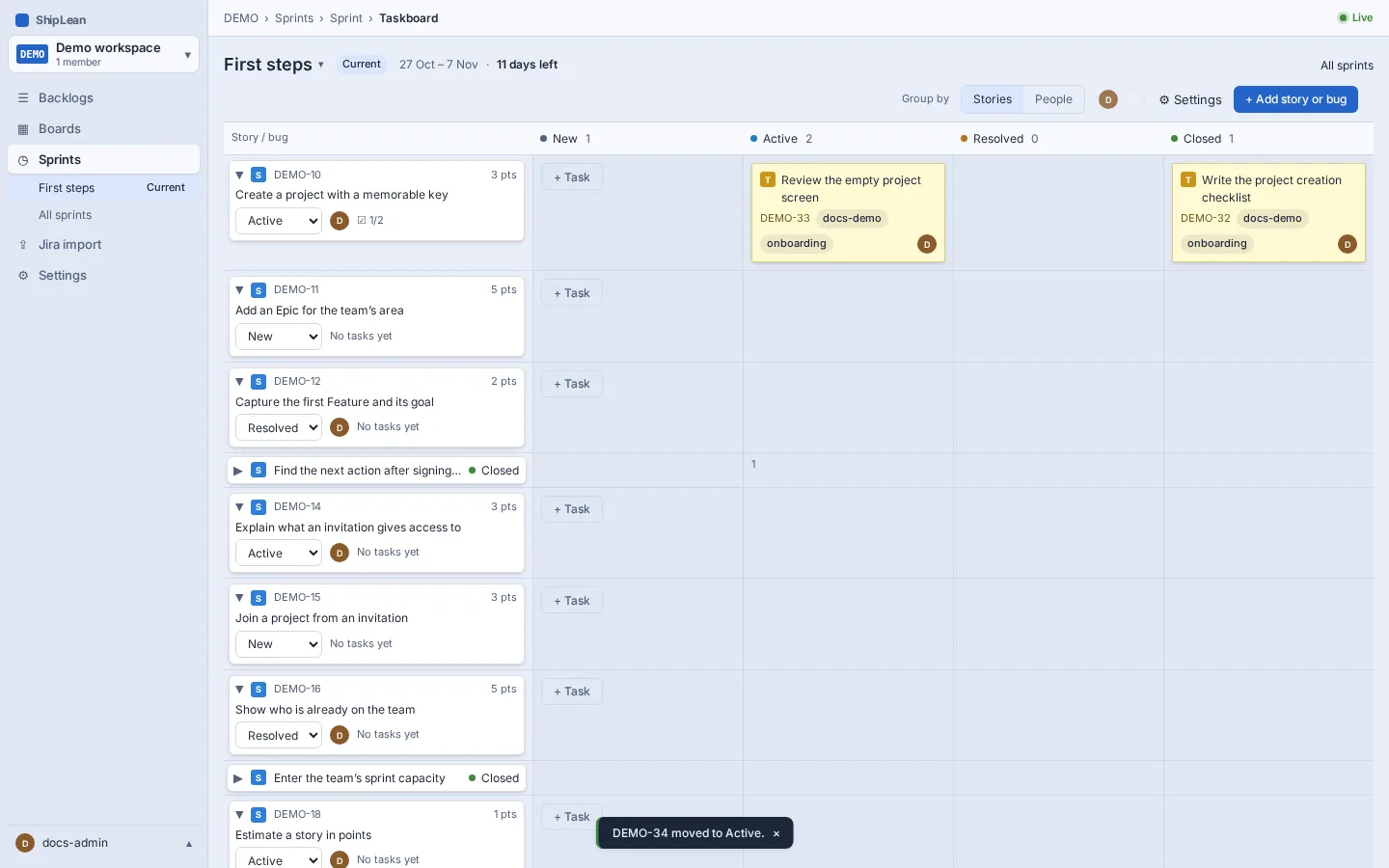
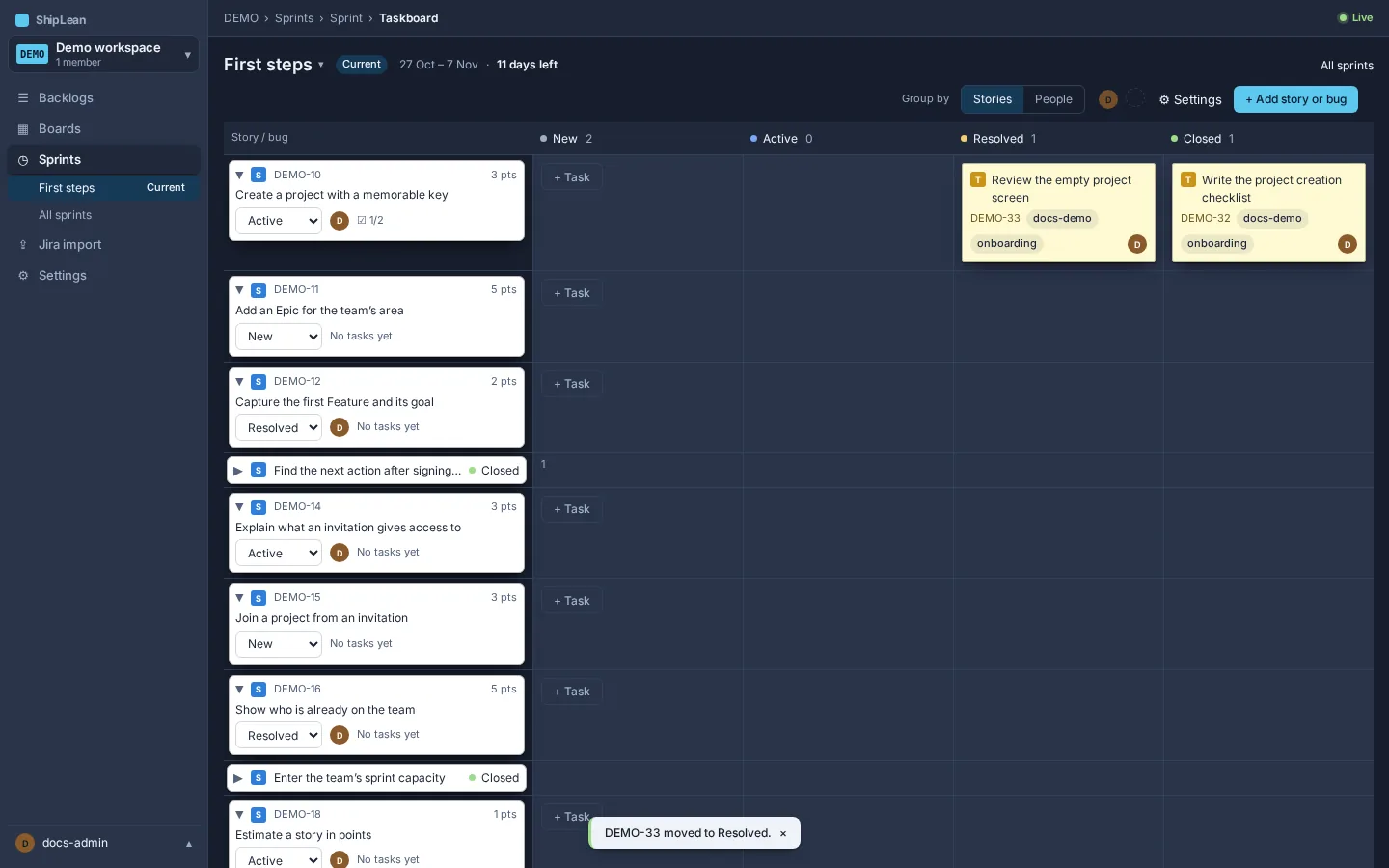
Use the Taskboard to see and move tasks in a sprint. Each column is a Task state. The rows group tasks by their parent Story or Bug, or by the person assigned to each task.
The address is /p/:key/sprints/:sprintId/taskboard.
See tasks by Story
Section titled “See tasks by Story”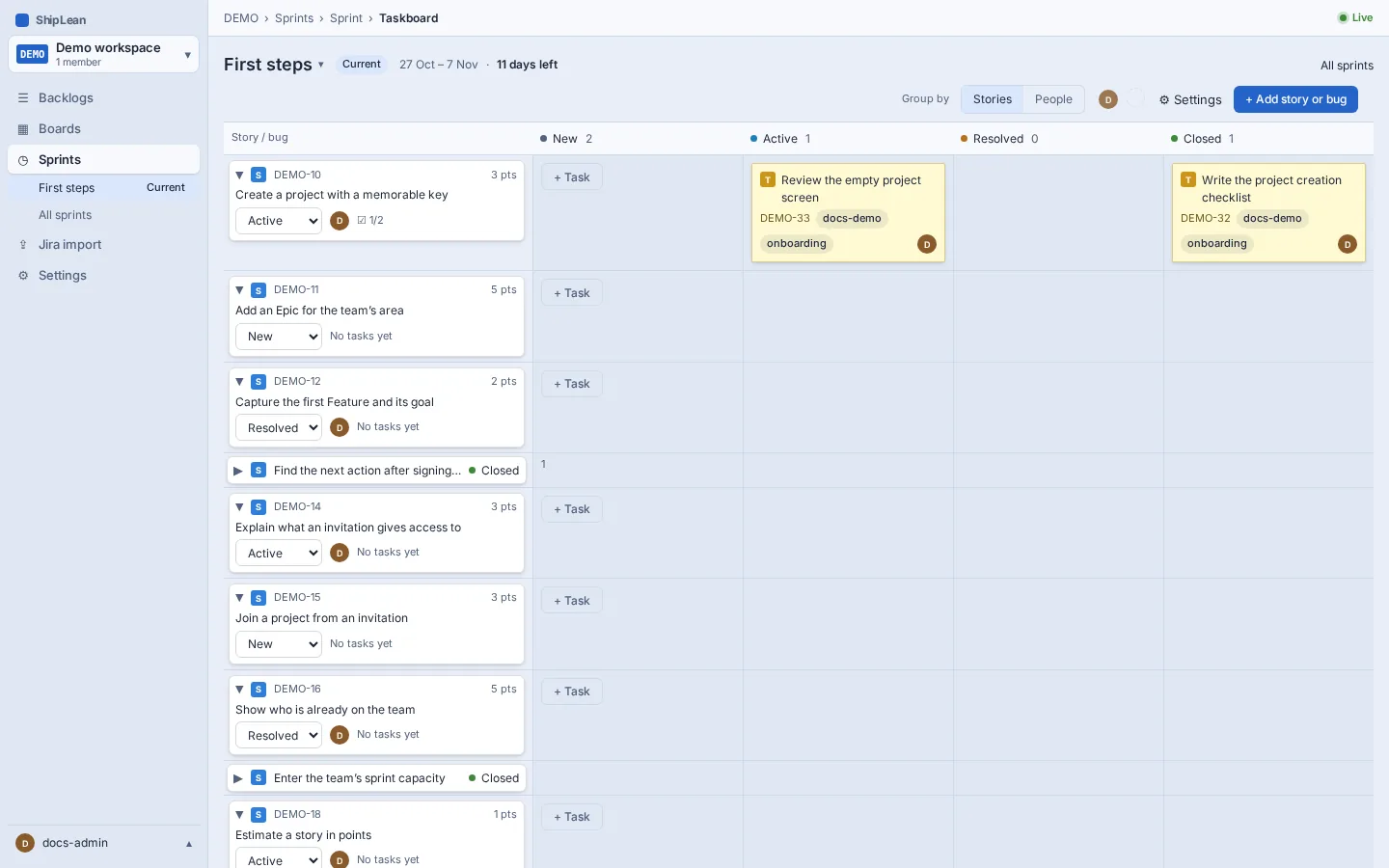
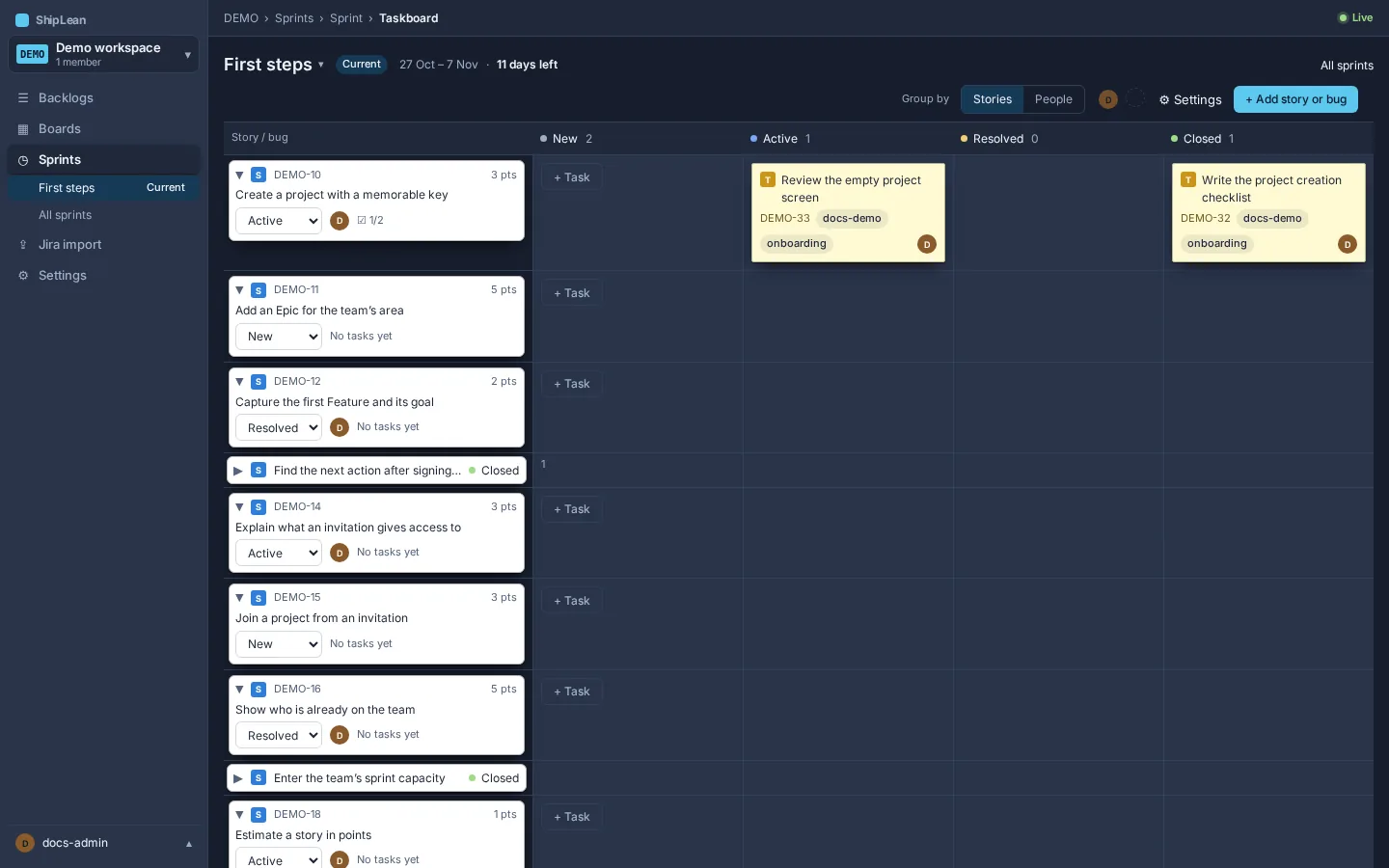
The default view groups tasks under their Story or Bug. Each row has a cell for every Task state. Select a row header to collapse or expand its tasks.
Group tasks by person
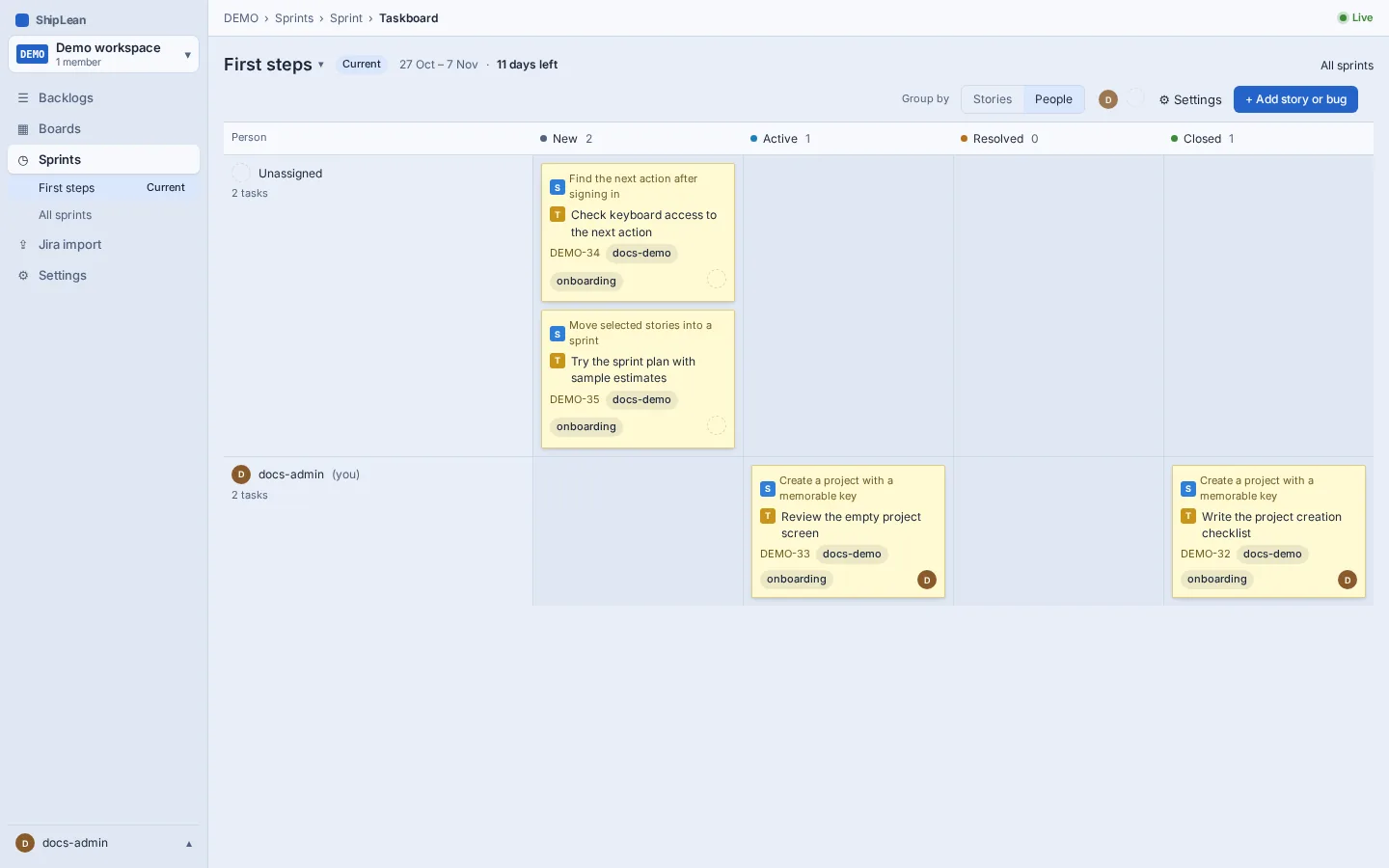
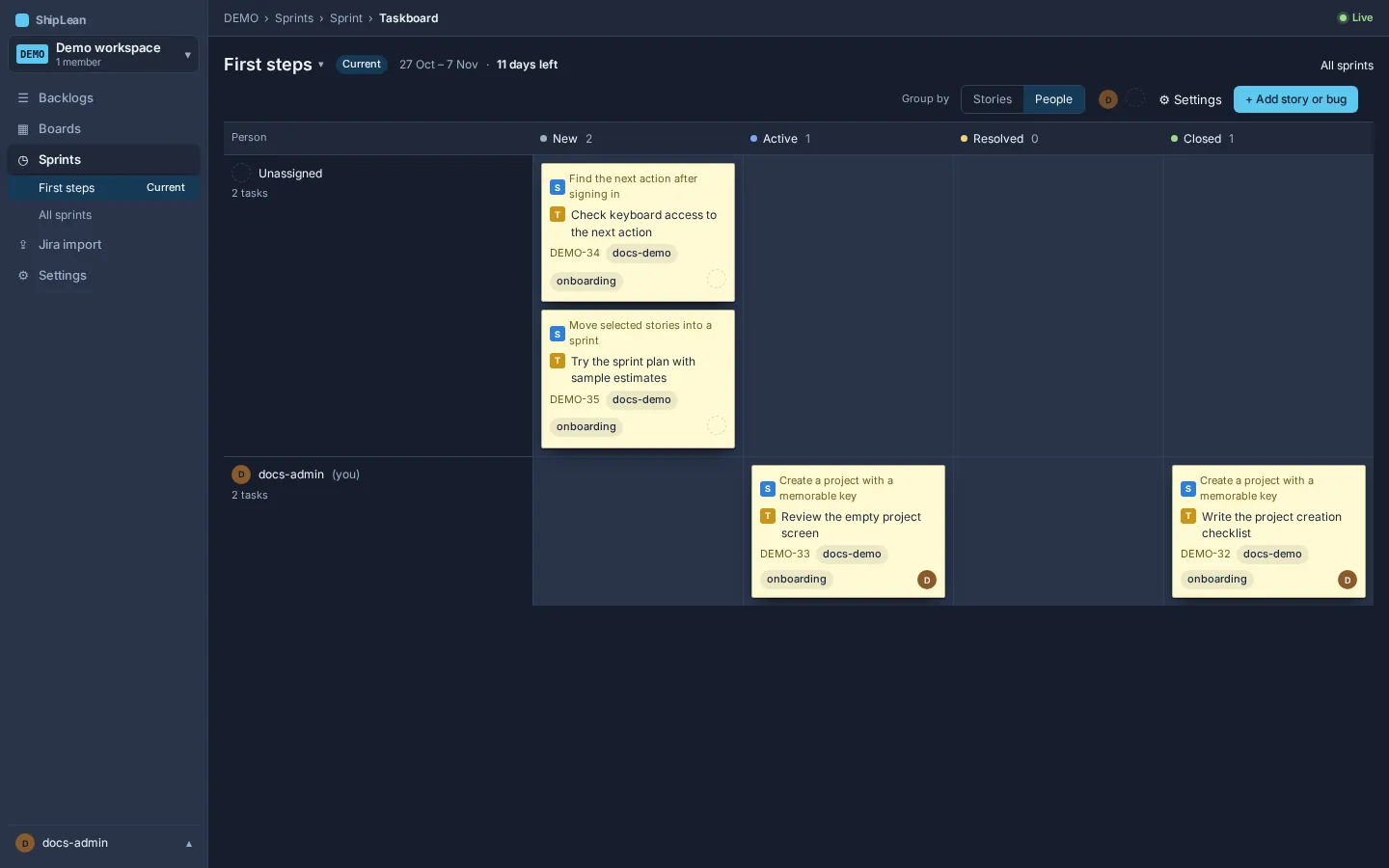
Section titled “Group tasks by person”Choose People in Group by to put tasks in rows for their assignee. Tasks without an assignee appear in Unassigned. Choose Stories to return to parent rows. Your grouping choice is saved for your account.
Move a task
Section titled “Move a task”Drag a task card to another state column or row. You can also focus a card and press Alt+Arrow. Left or right moves it to another Task state. Up or down moves it to the previous or next row.
Pick up an unassigned task
Section titled “Pick up an unassigned task”An unassigned task in a Proposed state has a Pick up action. Select it to assign the task to yourself and start it.
Change Task states
Section titled “Change Task states”The Taskboard columns come from the project’s Task states. To add or change those states, open Project settings and edit the states for Tasks. Removed tasks do not appear as columns.
Taskboard settings
Section titled “Taskboard settings”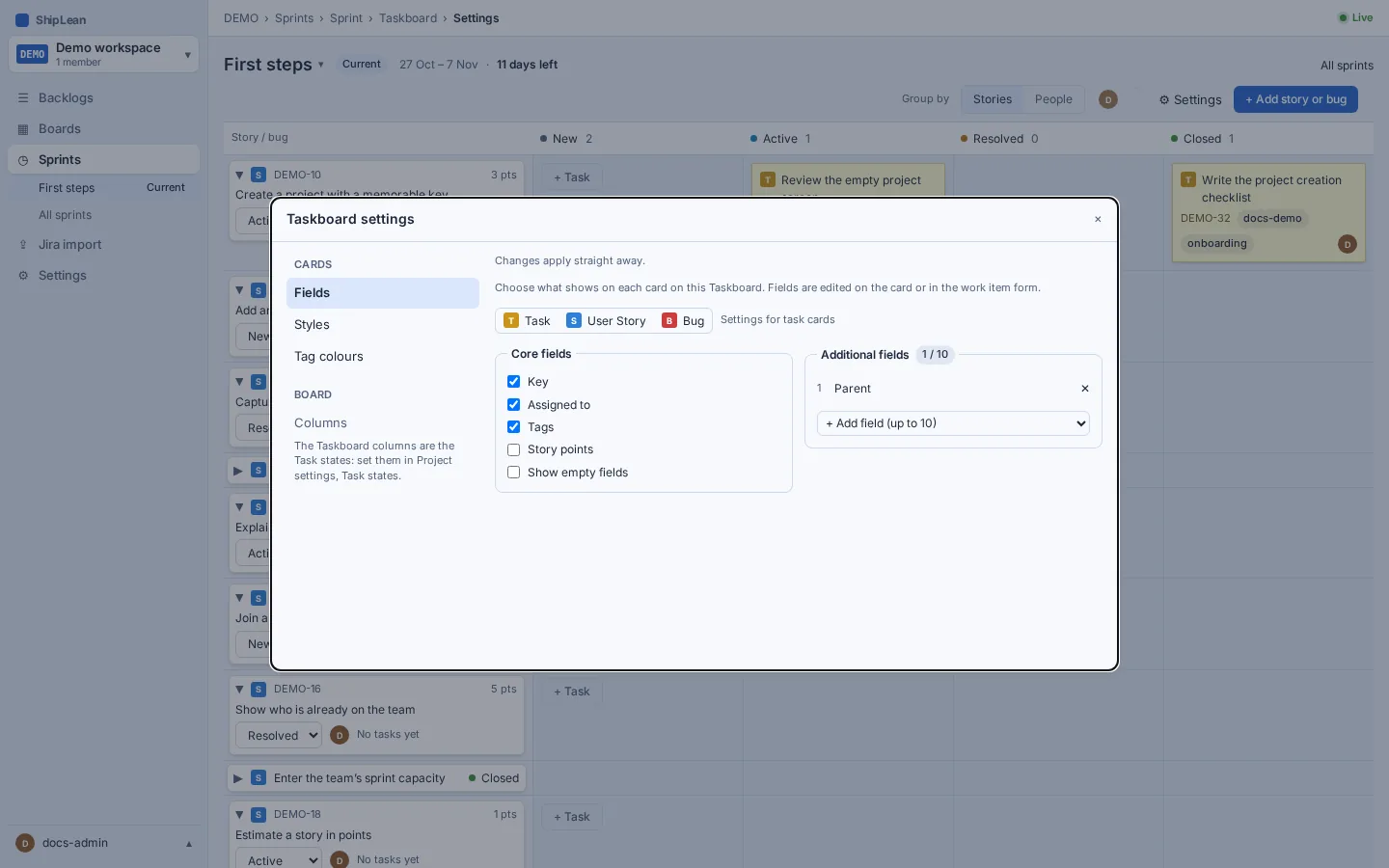
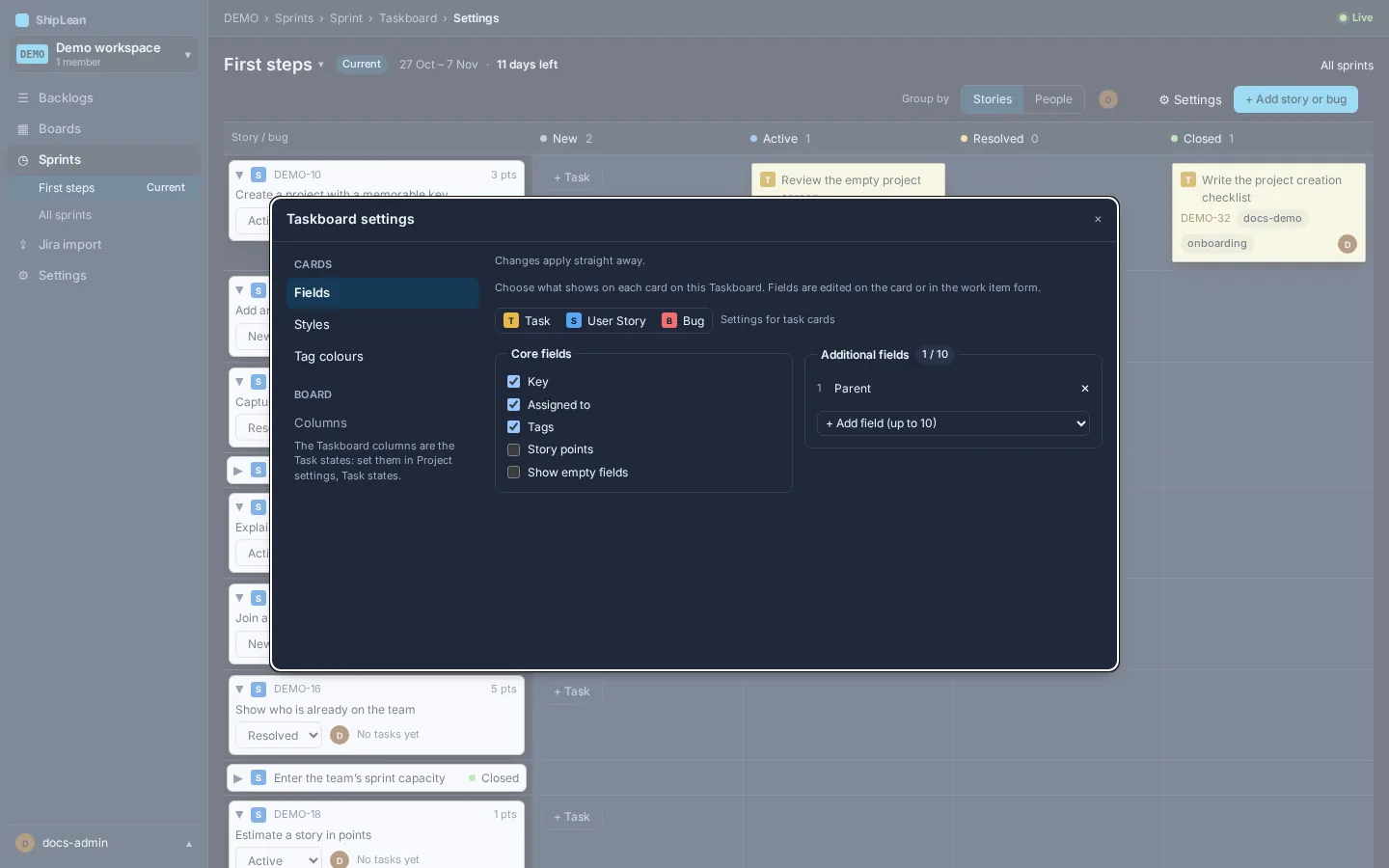
Open Settings to choose fields shown on task cards, including keys, assignees, tags, points, and extra fields. For Story and Bug rows, choose the parent fields and whether to show task progress. Changes apply immediately to the Taskboard.
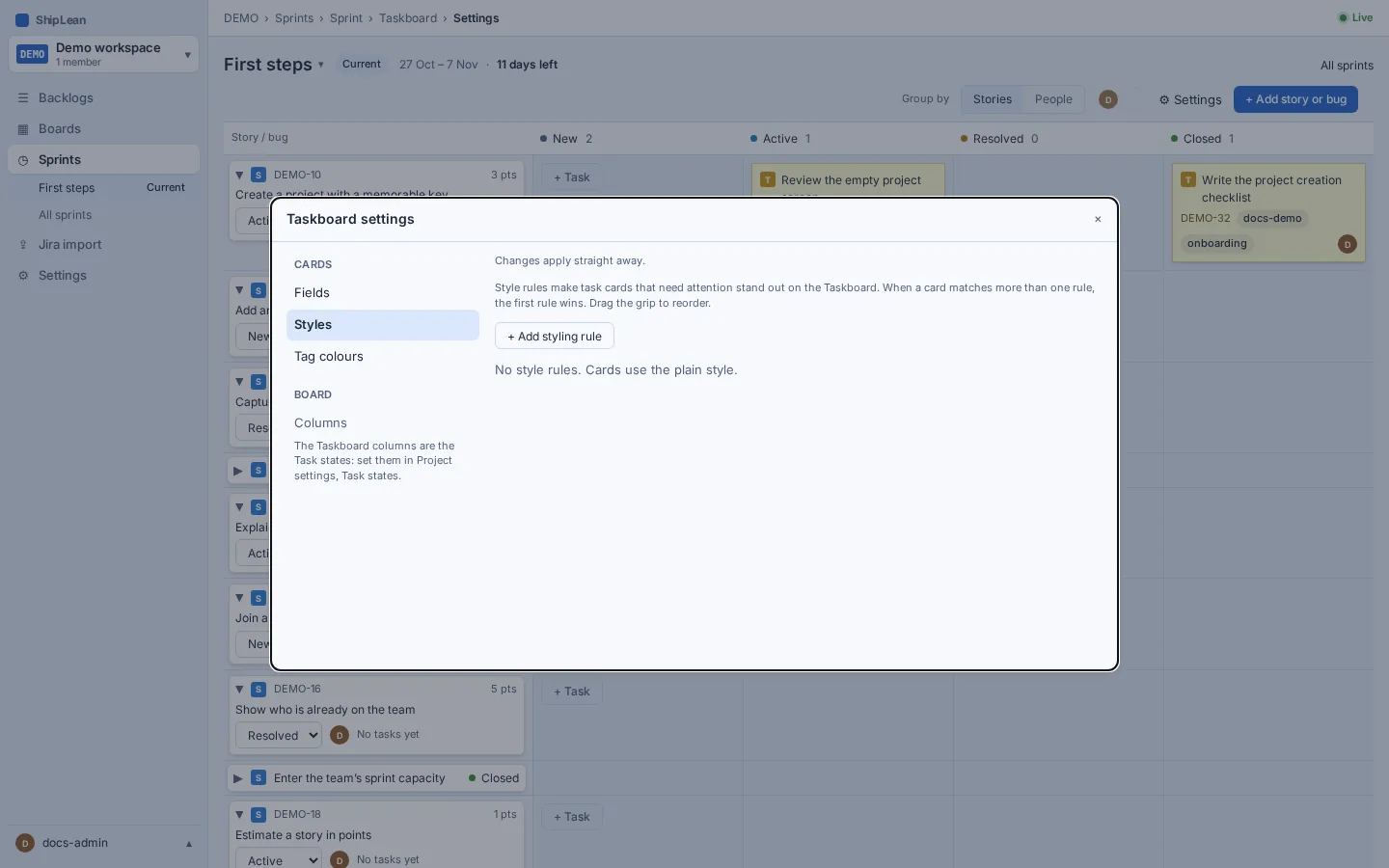
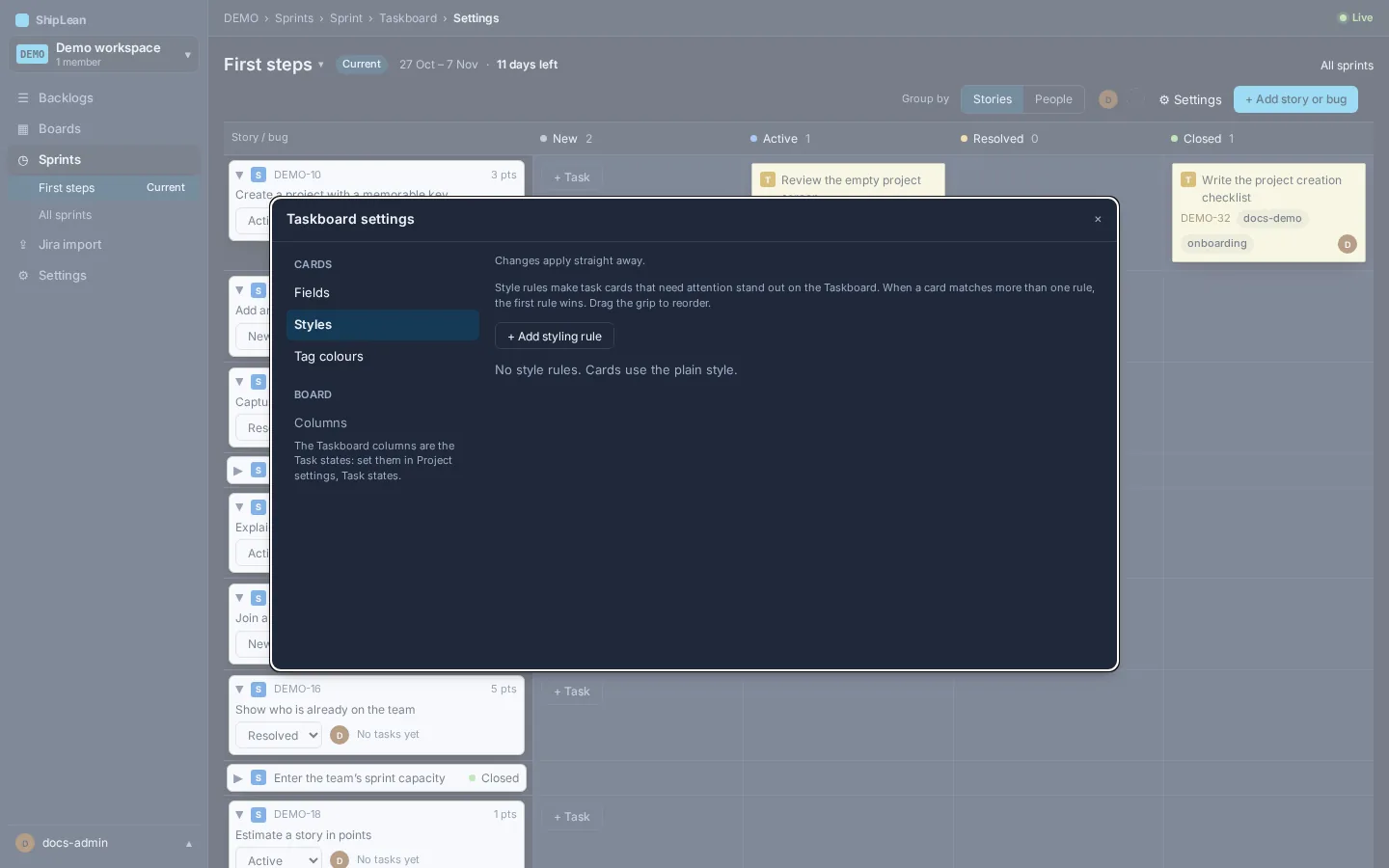
Add, edit, reorder, or disable style rules to highlight tasks that match criteria. If a card matches more than one rule, the first matching rule applies.
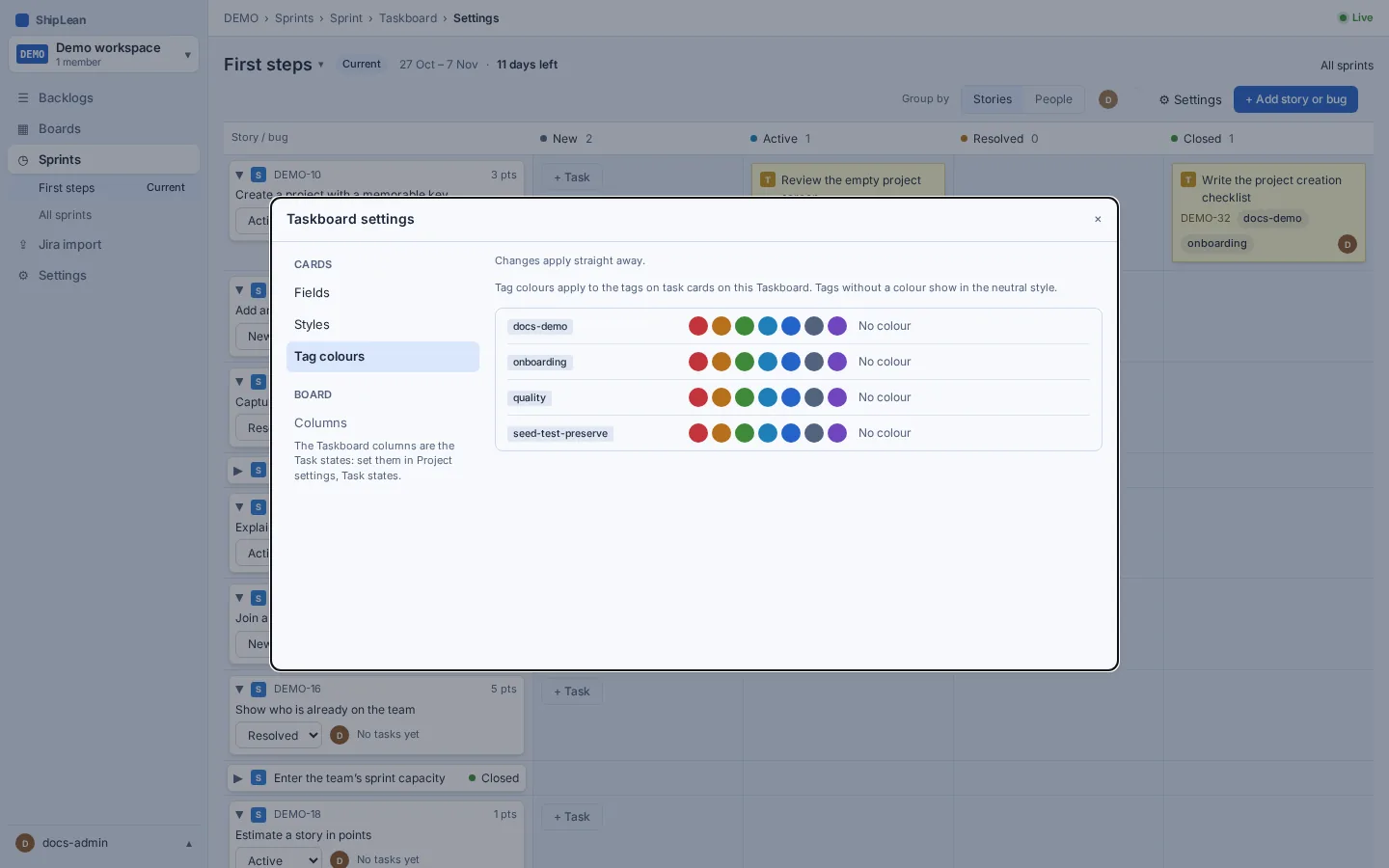
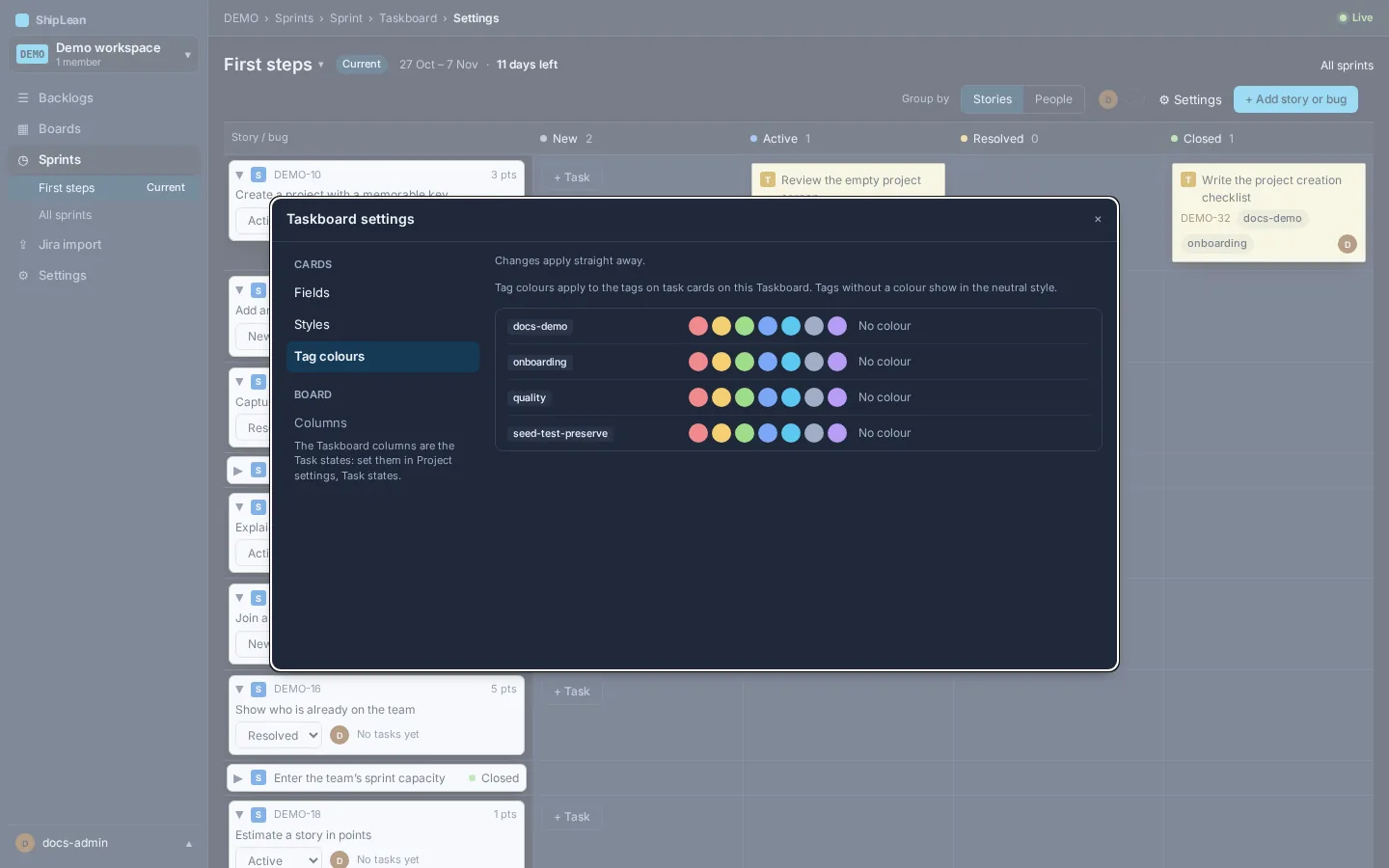
Choose tag colours for this Taskboard. These colours are separate from the colours set on Stories, Features, or Epics boards.
Keyboard shortcuts
Section titled “Keyboard shortcuts”- Alt+ArrowLeft/Right moves the focused task one Task state. Alt+ArrowUp/Down moves it to the previous or next row.