
Sprint planning and capacity
Use planning mode to arrange backlog items into sprint sections and see how their story points fit the room in each sprint. ShipLean forecasts in points.
The planning view is at /p/:key/backlogs/stories?mode=planning. A sprint’s capacity page is at /p/:key/sprints/:sprintId/capacity.
Overview
Section titled “Overview”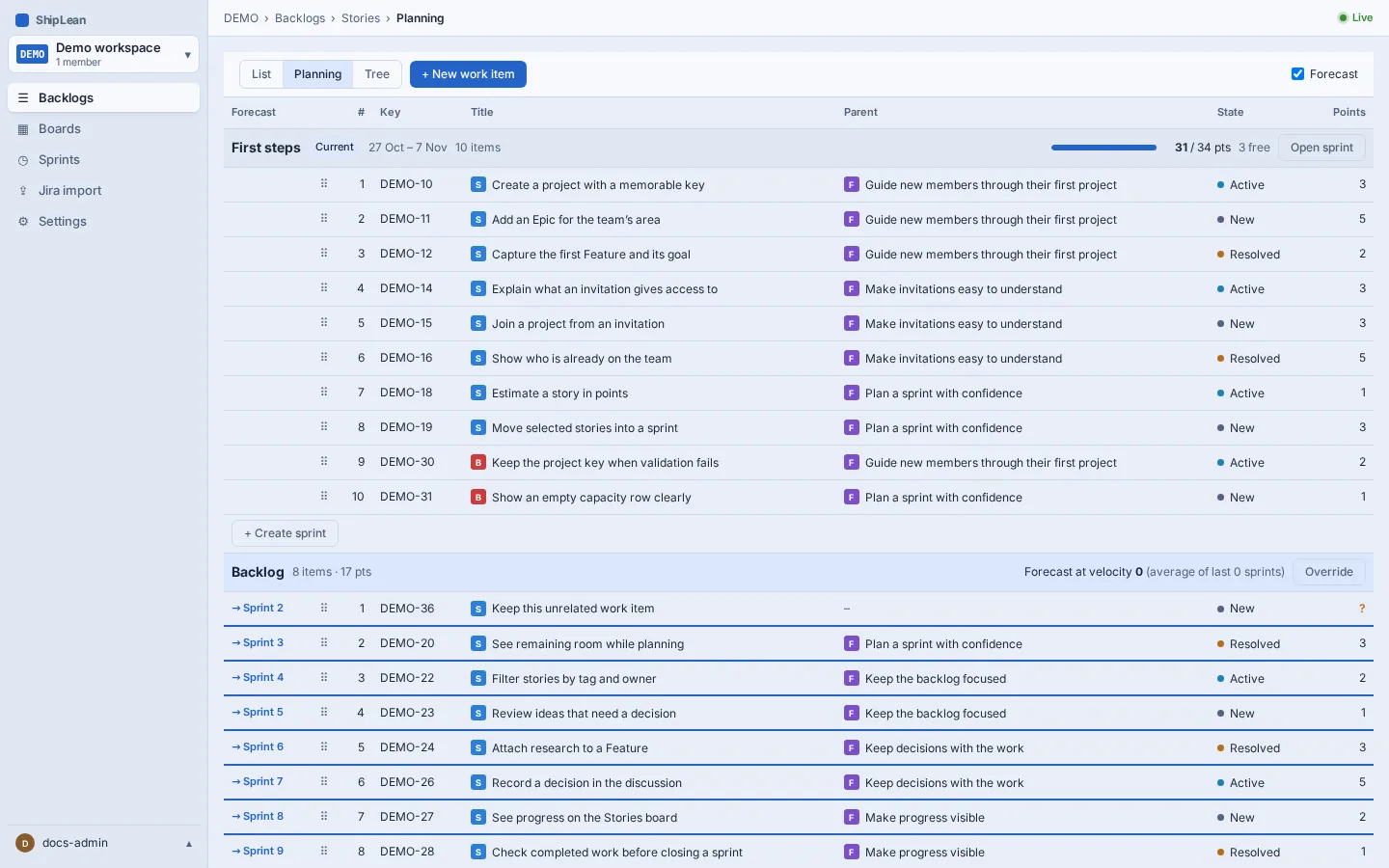
Plan work into sprints
Section titled “Plan work into sprints”- Open Backlogs, then Stories, and choose Planning mode.
- Drag stories from the backlog into a sprint section, or move them back to the backlog.
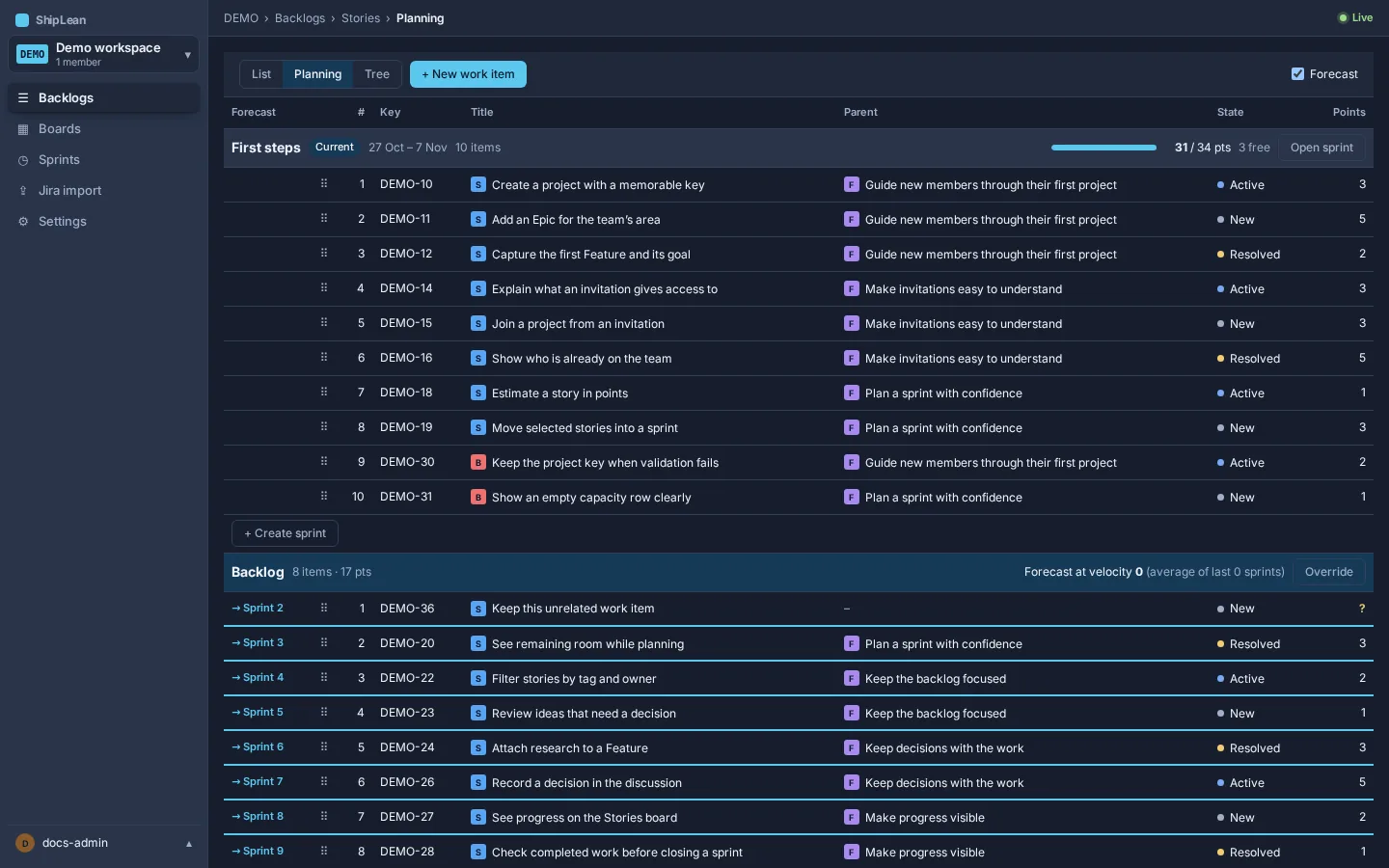
- Compare each section’s committed points with its capacity bar. If no one has entered capacity for a sprint, the forecast uses the project’s velocity instead.
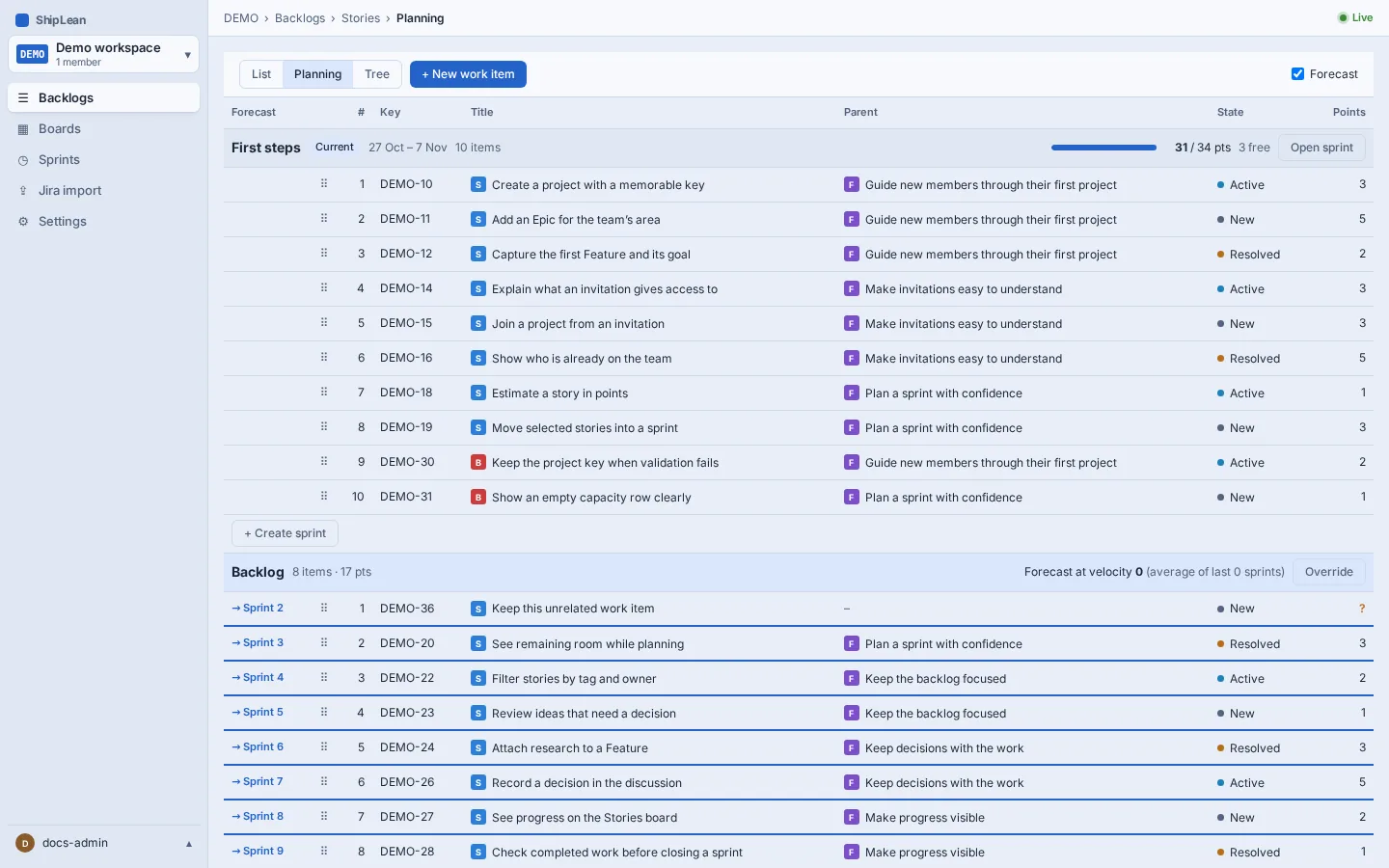
The forecast is a planning aid. It warns when committed points exceed capacity, but it does not prevent you from planning more work.
Enter capacity per person
Section titled “Enter capacity per person”Open the sprint’s Capacity view. Enter each member’s available capacity in points for that sprint, and add an optional note such as time away. The team total is compared with committed points and velocity. Select Save to keep your entries. You can copy capacity from the previous sprint or clear all entries.
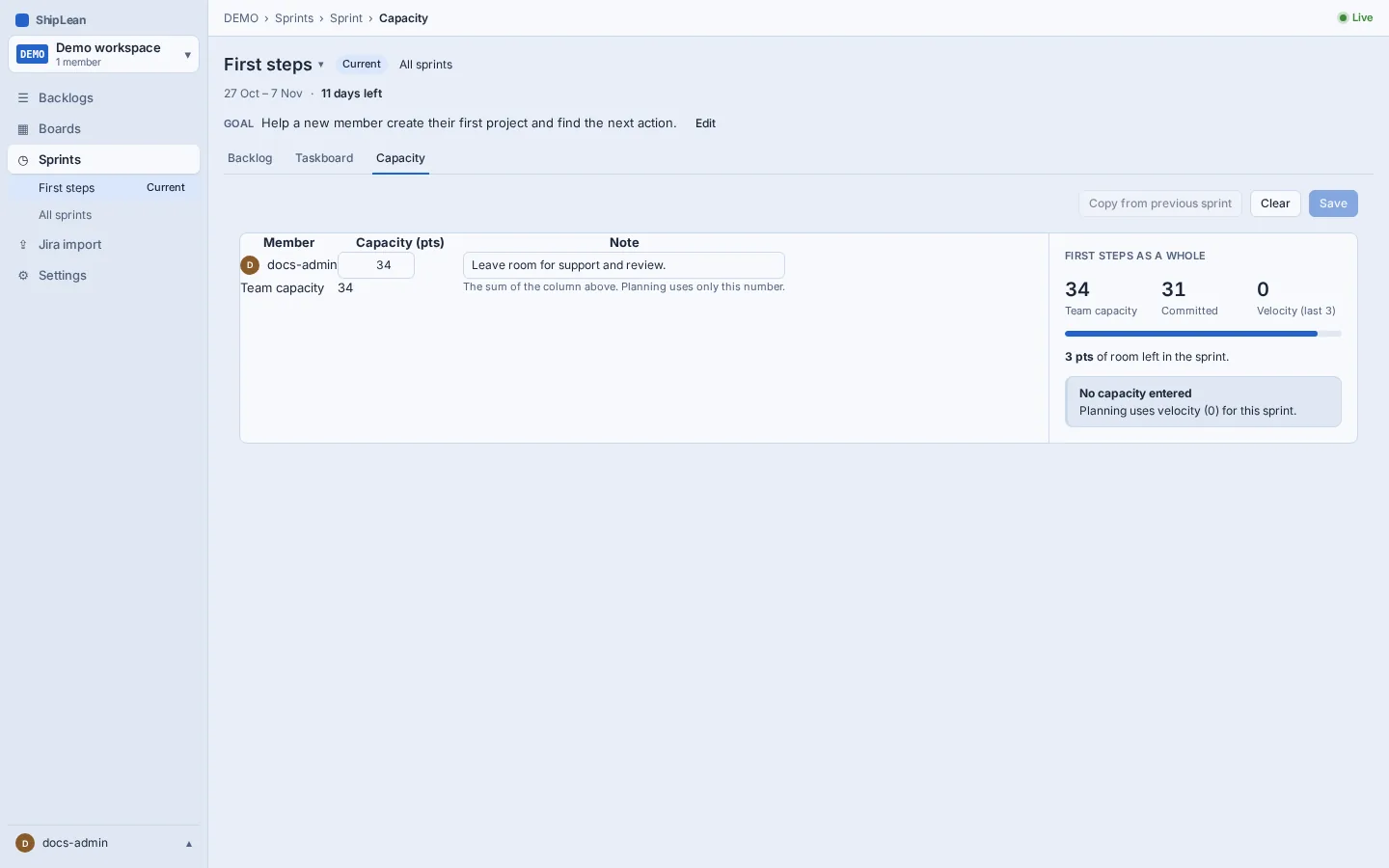
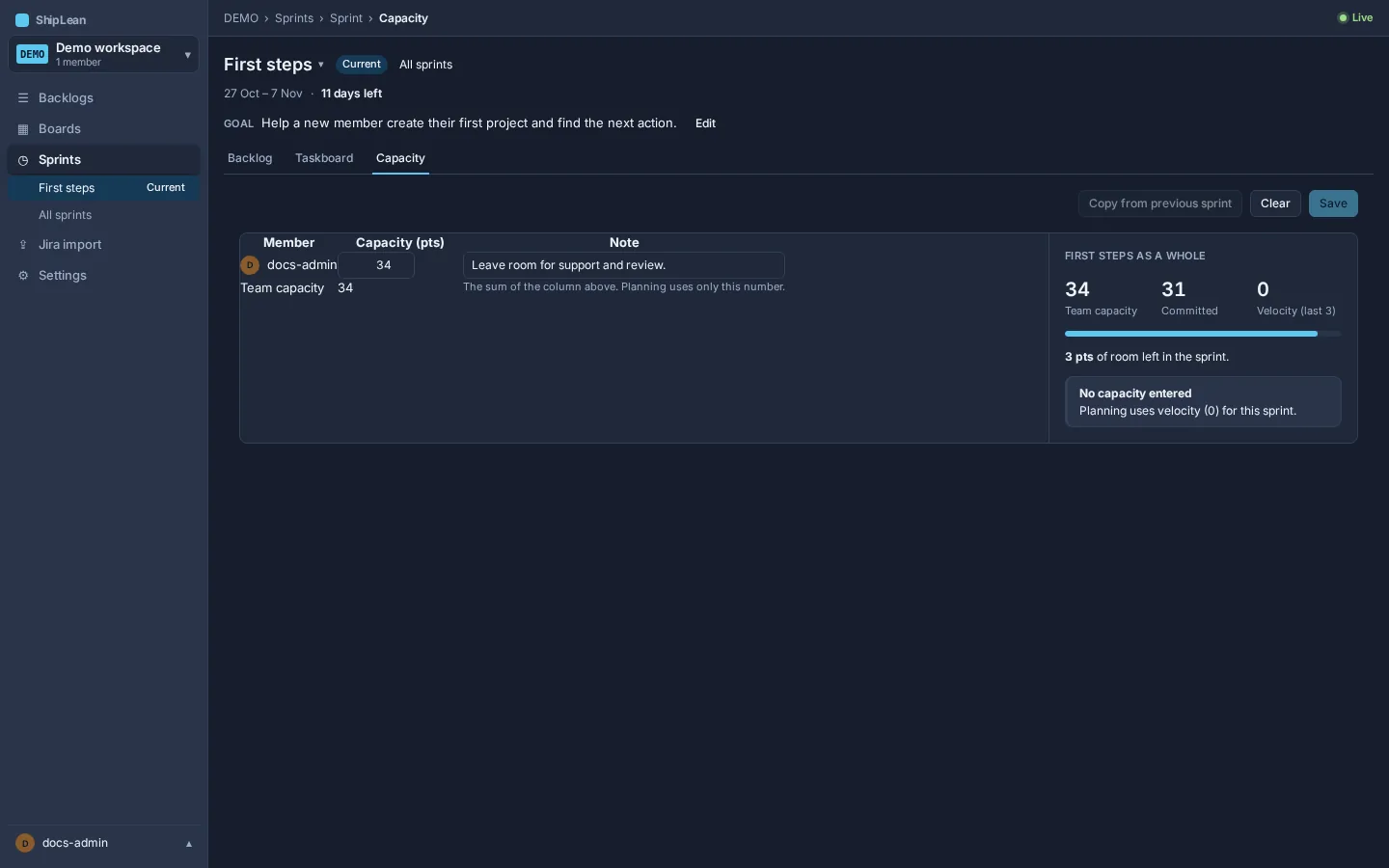
When no capacity has been entered, the team forecast uses the project’s calculated velocity or override. Capacity values are points per person, not hours or days.
Set the velocity window
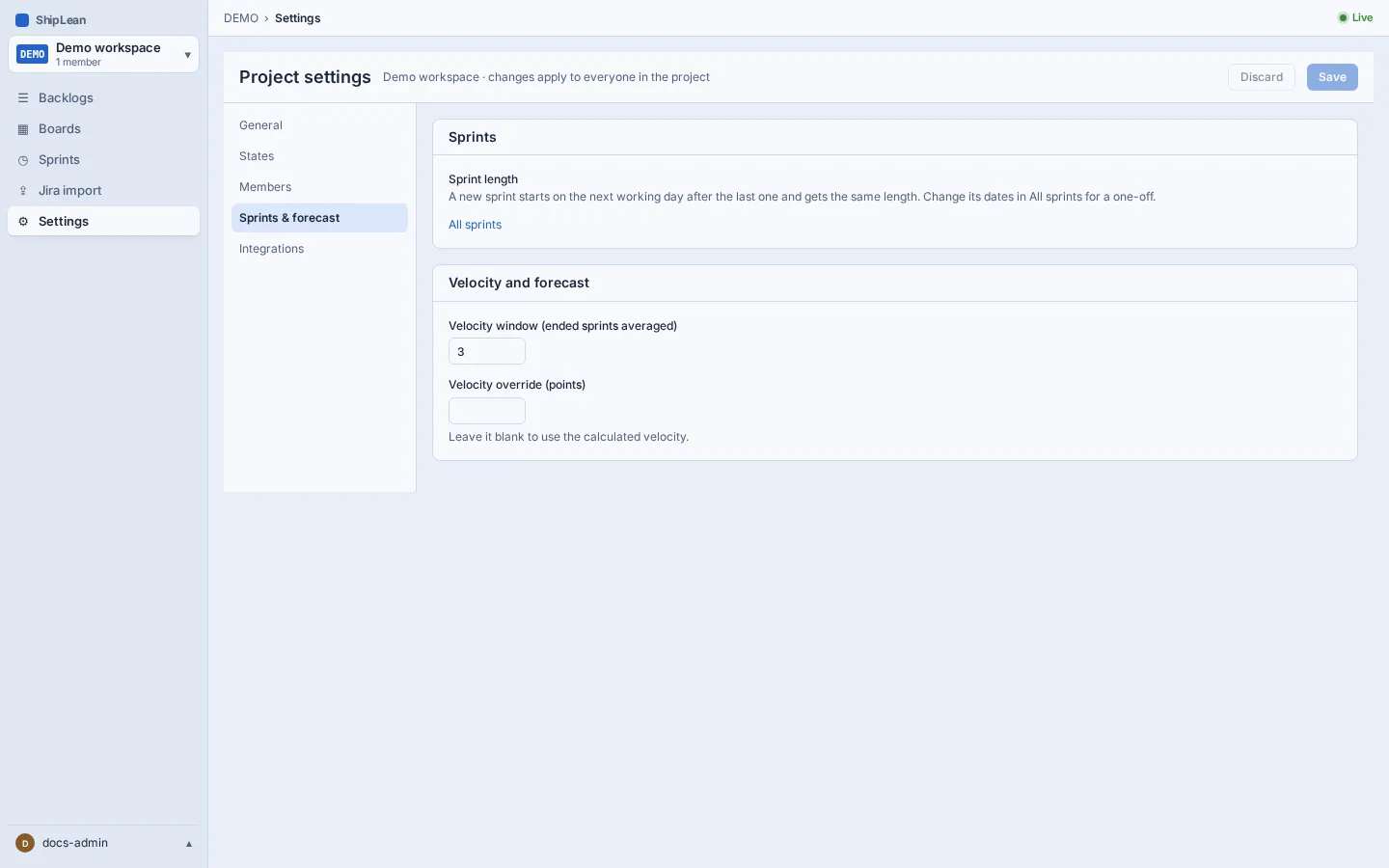
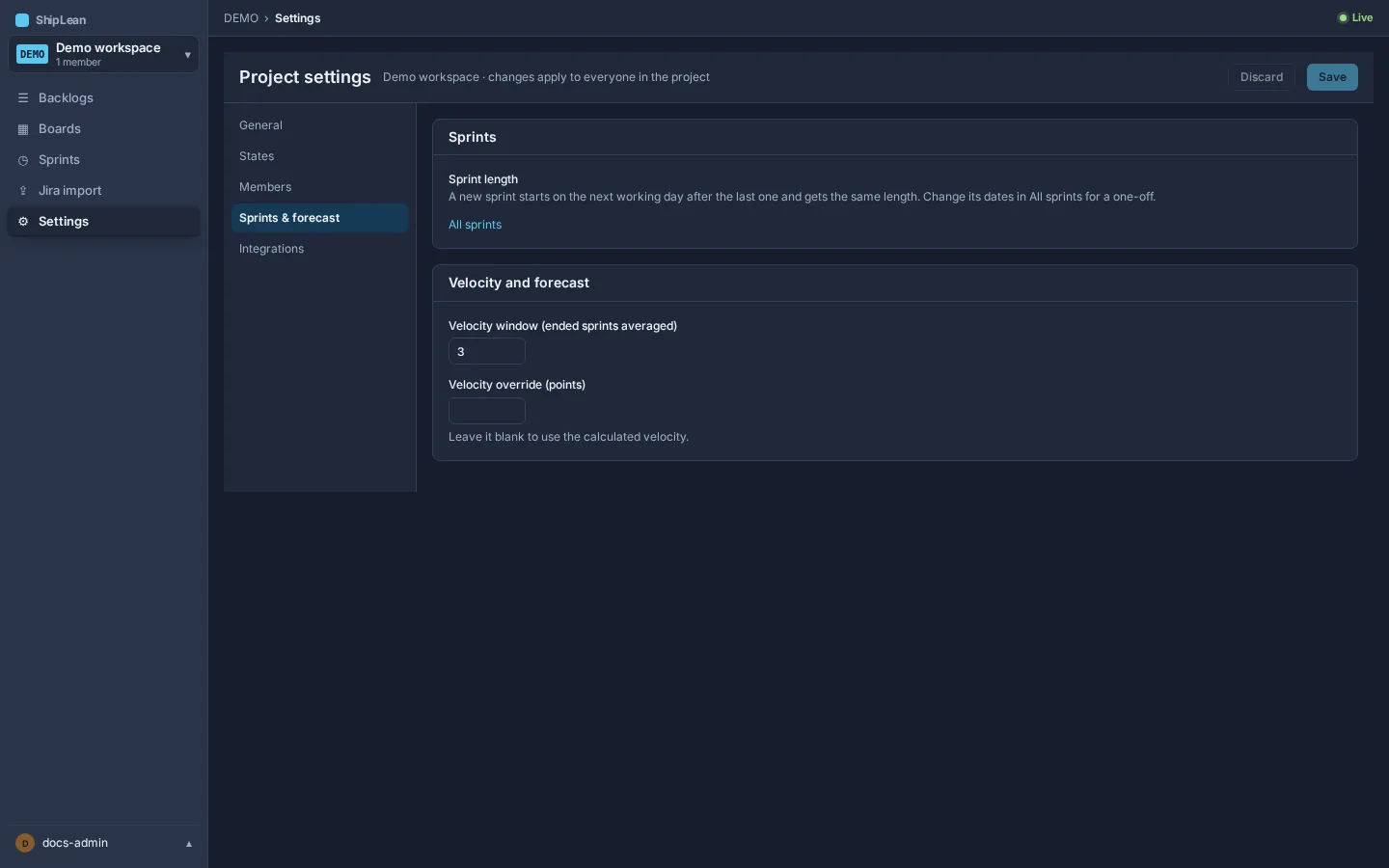
Section titled “Set the velocity window”Open Settings, then Sprints. Set the number of ended sprints to average. Leave the velocity override blank to use the calculated average, or enter an override in points. Planning uses the override when one is set.